Free Transform: Rotate, Scale and Skew With a Movable Pivot
Brinimate's Q tool: scale from any anchor, rotate in 15° steps, skew by dragging the edges, and move the rotation pivot wherever you need it.
LuisOA
Brinimate Team
Free Transform (Q)
The regular select tool moves and scales. Free Transform does what’s missing: rotate, skew, and — most importantly — decide which point everything turns around.
Press Q, click an object, and the transform frame appears.
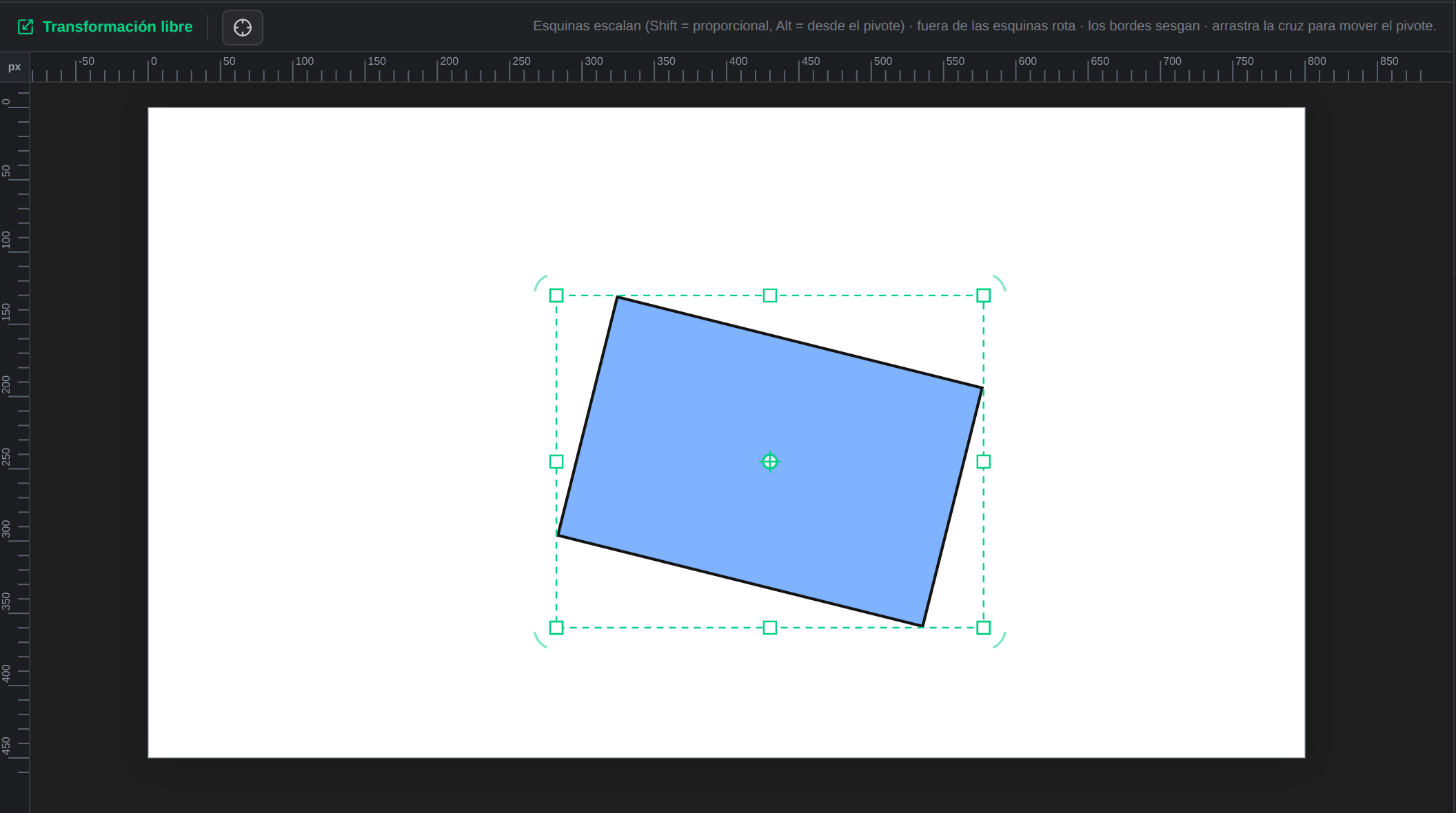 The frame after a rotation: square handles for scaling, faint arcs marking the rotation zones, and the pivot crosshair at the center.
The four things you can do
1. Scale — drag the square handles
- Corners: scale both axes at once.
- Edge midpoints: scale that axis only.
- Shift: keep the proportions.
- Alt: scale from the pivot instead of from the opposite handle.
2. Rotate — drag just outside the corners
Just outside each corner there’s a circular rotation zone (marked with a faint arc). Drag there and the object turns around the pivot.
- Shift: snap rotation to 15° steps for clean angles.
3. Skew — drag the edges
Drag any side of the frame (the side, not the handle) and the shape leans. The opposite side stays put, so skewing feels like pushing a card in a deck.
This is what Animate won’t let you do directly, and it’s the fast way to fake perspective or lean.
4. Move the pivot — drag the crosshair
The crosshair in the middle is the rotation point. Drag it anywhere: the end of an arm, the base of a pole, a character’s shoulder. Then rotate, and the object turns from there.
The Center pivot button in the options bar puts it back in the middle.
Why the pivot matters: to animate an arm lifting, the rotation has to come from the shoulder, not from the middle of the arm. Moving the pivot is the difference between believable animation and a limb that looks like it’s floating.
What happens underneath (and why it’s worth knowing)
Brinimate bakes the transform into the geometry rather than storing a wrapper. Practical consequences:
- A rectangle or ellipse you rotate or skew becomes a path. That’s expected and correct: a rectangle is by definition axis-aligned. It keeps its fill, stroke and width.
- A circle you rotate stays a circle (rotating a circle changes nothing).
- Brush strokes absorb rotation and scale losslessly; skew recalculates their points.
- Imported images are never resampled: the transform lives in the node’s own fields, so you can rotate and scale a thousand times without degrading the bitmap.
Honest limitation: text and symbols only support move and scale for now — their internal model has no rotation field. When you select one, the rotate and skew handles disappear instead of pretending to work.
Shortcuts
| Action | How |
|---|---|
| Activate the tool | Q |
| Proportional scale | Shift + drag a corner |
| Scale from the pivot | Alt + drag |
| Rotate in 15° steps | Shift + drag outside a corner |
| Undo | Ctrl+Z |
Coming from coloring? Continue with rulers, guides and snapping to place everything precisely.