Templates and Skits: From Zero to a Video With Talking Characters
Brinimate's fast lane: pick a template, write the dialogue, generate voice with automatic lip-sync and subtitles, and share a link others can remix.
LuisOA
Brinimate Team
Templates and Skits: the Fast Lane
Brinimate has two layers. The deep one is the full editor with timeline, layers and rigging. The fast one is Skits: pick a template, write what the characters say, and out comes a video with voice, synced mouths and subtitles.
This guide covers the fast lane — the one that gets you a video in minutes.
Step 1 — Open templates and pick a format
Press ✨ Templates in the top bar (or Add → Template on mobile).
At the top you choose the output format: 9:16 for TikTok, Reels and Shorts; 16:9 for YouTube; 1:1 and 4:5 for posts. The thumbnails redraw in the chosen format, so you actually see how the framing will look.
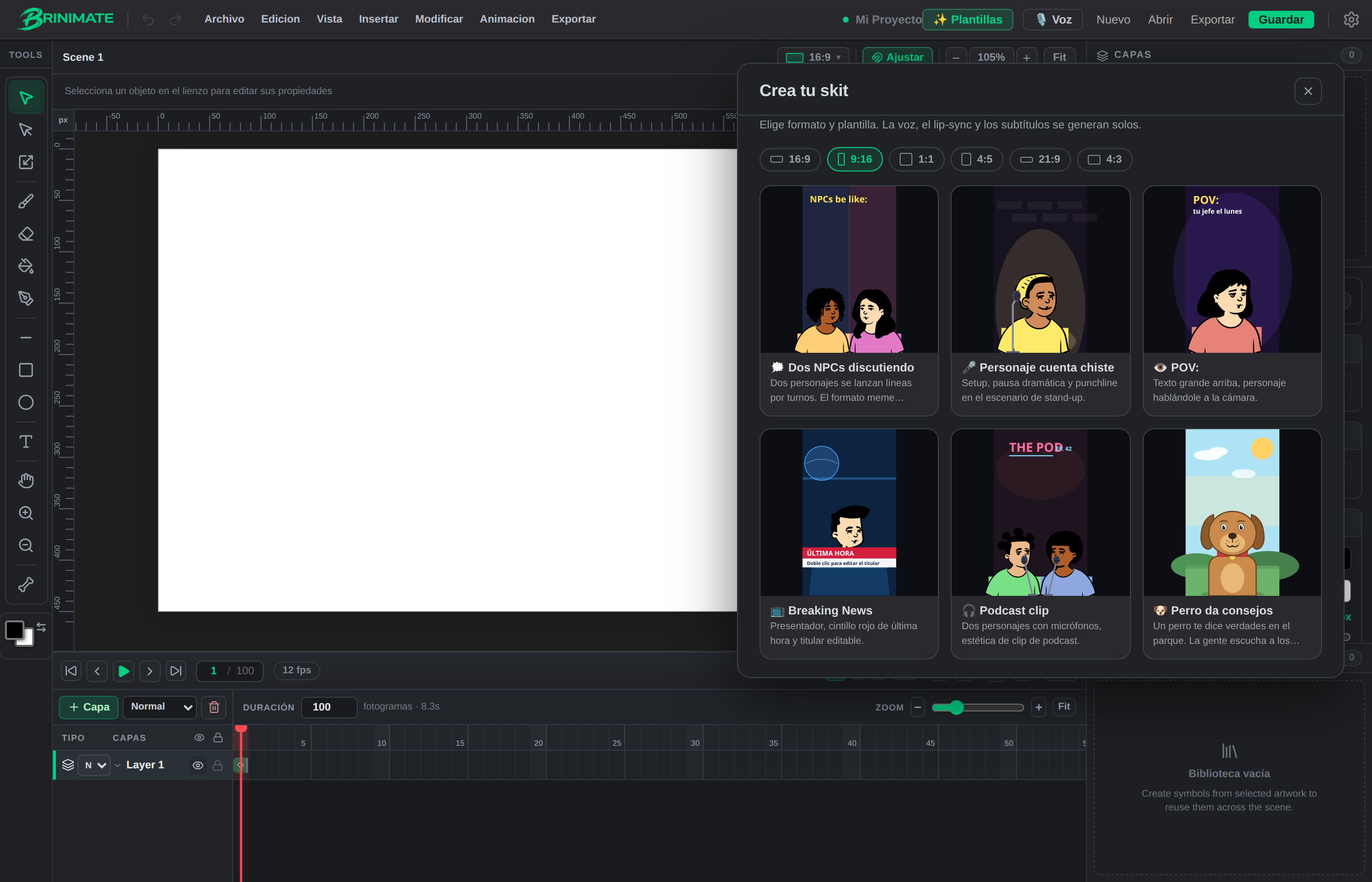 The thumbnails aren’t illustrations: they’re the real template rendered in the format you picked.
There are templates for the formats that work: two NPCs arguing, character telling a joke, POV, Breaking News, podcast clip, and dog giving advice.
Step 2 — Choose the cast and background
Inside a template, each character slot has its own carousel: tap a face and the character changes on the canvas instantly. Any character in the catalog works in any template.
Below that you choose the background: the template’s own scene, one from the library (park, night city, horror, office, stage…), or ✨ Auto, which reads your dialogue and picks a background that fits the topic.
Step 3 — Write the dialogue
It starts with one box per character: a single one for solo templates, two for a duo.
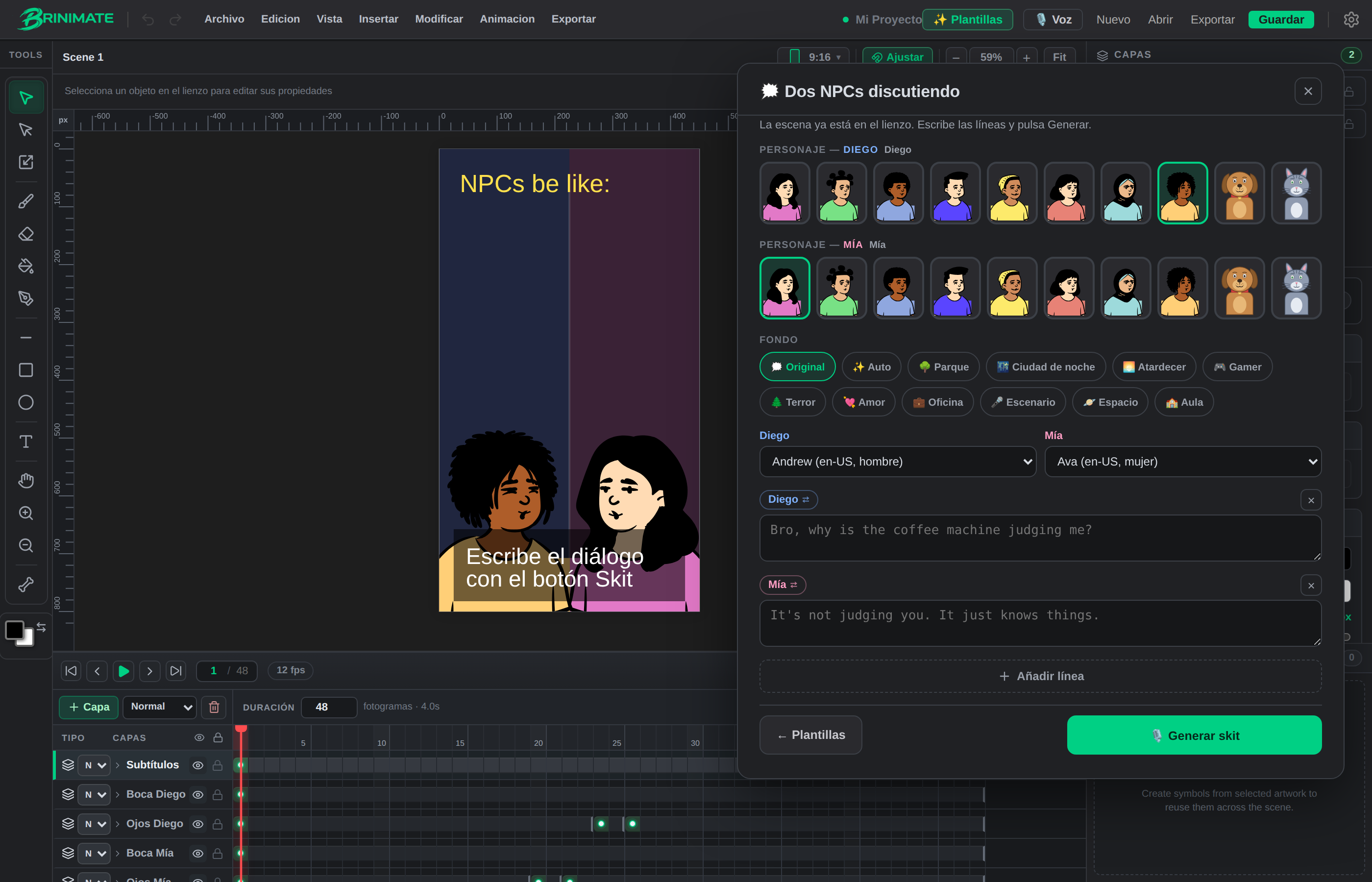 Cast, background, per-character voice and the dialogue lines, with the ”+ Add line” button to grow.
- + Add line appends another line, automatically alternating to the next character.
- The name chip (
Diego ⇄) hands that line to another character with one tap. - The × removes a line.
- The grey text is an example (a placeholder), not content you need to delete.
- Above each character you pick their voice.
Writing tip: short lines work far better. The voice sounds more natural and the subtitles fit without awkward breaks.
Step 4 — Generate
Press 🎙️ Generate skit and Brinimate does all of this on its own:
- Synthesizes each line with its character’s voice.
- Joins the audio into one track with natural pauses between turns.
- Generates viseme-based lip-sync: it analyzes the words and moves the speaking character’s mouth with the right shape per sound.
- Creates word-timed subtitles in groups of up to 4 words, with the speaker’s name and color.
- Fits the scene length to the real audio.
When it finishes, hit Play to watch it with audio.
Step 5 — Share, or remix
When it’s done you get 🔗 Copy remix link. That link carries the template, dialogue, cast and background inside the URL itself — no account, no server. Whoever opens it lands in the editor with your skit loaded, ready to change.
It’s the most direct way for an idea to travel: someone sees your video, opens the link, changes two lines, publishes their version.
And if you want to go further
A generated skit isn’t a black box: when it finishes you have a normal timeline scene with separate layers (background, bodies, mouths, eyes, props, subtitles) and their keyframes. You can:
- Change the subtitles, move them, recolor them.
- Add hand-drawn props on top.
- Bring in your own image with Insert → Image.
- Edit any text on the canvas with a double click.
In other words: the template is a starting point, not a cage.
A limitation you should know
MP4 export still comes out without audio. The video with the animation and subtitles exports perfectly, and the in-editor preview does play sound; what’s missing is muxing the voice track into the final file. It’s flagged as the number-one roadmap priority.
In the meantime: for social, many creators export the video and add the audio in their phone’s editing app.
Voice requirement
Voice generation uses a synthesis service (voice.brinimate.com). You need a connection to generate; everything else — drawing, animating, exporting — runs in your browser without sending anything anywhere.