
Make Your Photo Talk: Turn Any Picture Into a Video That Speaks and Blinks
Upload a photo of your cat, your grandma or a painting, draw a line across the mouth with the pencil and type what it says. Brinimate gives it a voice, moves the jaw, makes it blink and adds subtitles.
LuisOA
Brinimate Team
Make Your Photo Talk
Does your cat have opinions? Does grandma’s portrait have something to say? With Make your photo talk any picture becomes a vertical video that speaks out loud, opens its mouth in time with every word and blinks. You don’t need to draw anything or know how to animate: one photo, one line and some text.
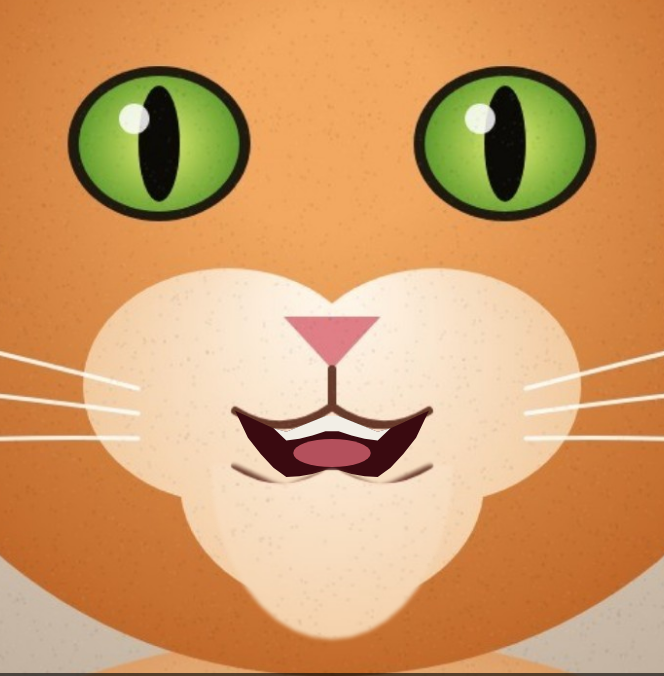 One frame with the mouth open: the lower part of the face drops like a jaw and the gap is painted as the inside of a mouth.
Step 1 — Open the tool
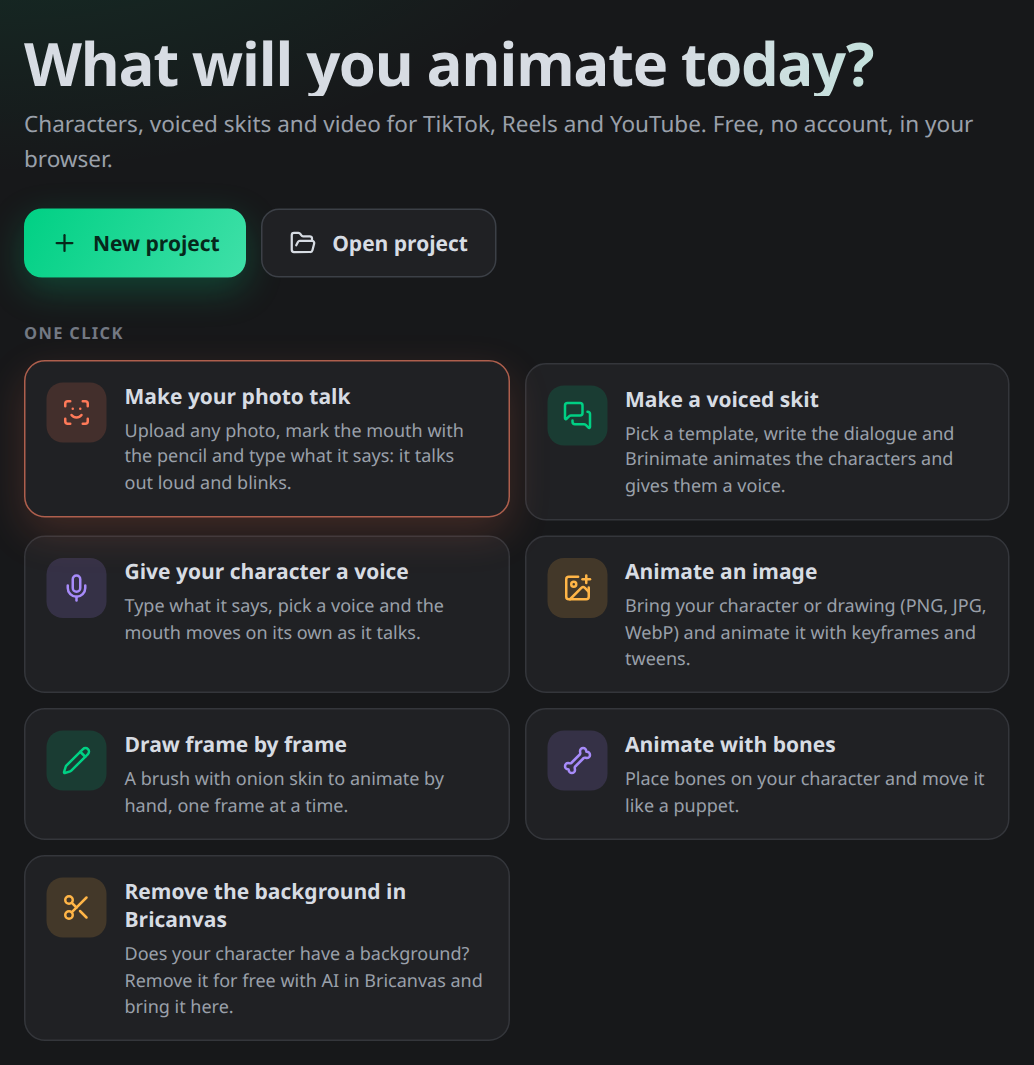
On Brinimate’s start screen it’s the first card: Make your photo talk. If you’re already in the editor, it’s under Insert → Talking photo… (on mobile, in the Add button).
Step 2 — Pick the photo and the format
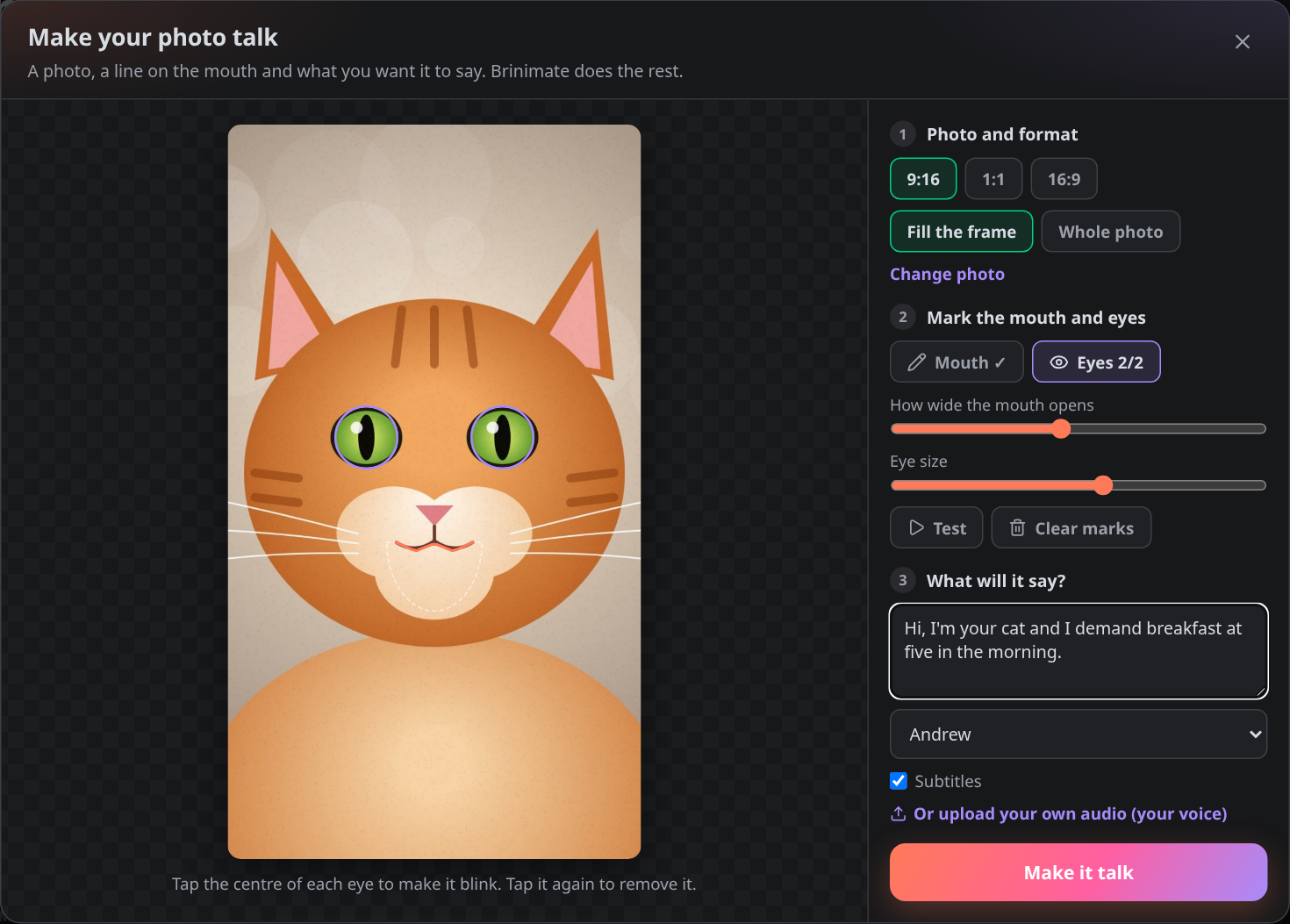
Press Choose a photo or drop it on the dialog. PNG, JPG and WebP all work. What looks best: a face looking at the camera, well lit, with the mouth closed. People, pets, paintings, toys, statues… if it has a mouth, it can talk.
On the right you pick the video format: 9:16 for TikTok, Reels and Shorts, 1:1 for a post and 16:9 for YouTube. And how the photo fits:
- Fill the frame covers the whole video (cropping whatever sticks out at the sides).
- Whole photo shows all of it and fills the rest with a blurred copy of the same photo.
Step 3 — Mark the mouth with the pencil
With the Mouth tool (the pencil), draw a line along the lips, from one corner of the mouth to the other. That line is the cut: everything below it, down to the chin, moves like a jaw. A dashed outline shows you which part will move.
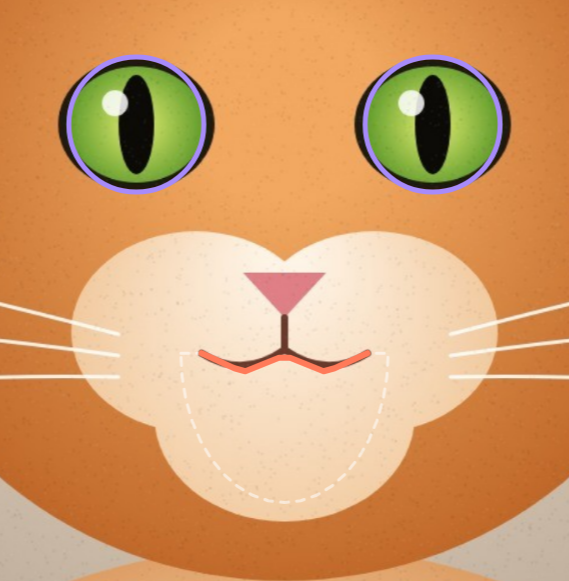 The coral line is the one you draw; the dashed white outline is the jaw that drops as it talks; the violet circles are the eyes.
When you let go of the pencil, the tool switches to Eyes by itself: tap the centre of each eye. Made a mistake? Tap it again and it’s gone.
Two controls to fine-tune:
- How wide the mouth opens: lower for something subtle, higher for an expressive character.
- Eye size: make the circle cover the whole eye, so the eyelid hides it properly.
Press ▶ Test and the photo starts moving its mouth and blinking right there, before you generate anything.
Step 4 — Type what it says
Under What will it say? type the text and choose a voice (English voices from the US, UK and Australia, and Spanish ones). Keep Subtitles ticked if you want the text on screen.
Rather use your own voice? Press Or upload your own audio and pick a recording (MP3, WAV, OGG, M4A…). The mouth follows how loud the sound is.
Press Make it talk.
Step 5 — Review and export
Brinimate creates a new project with everything in place:
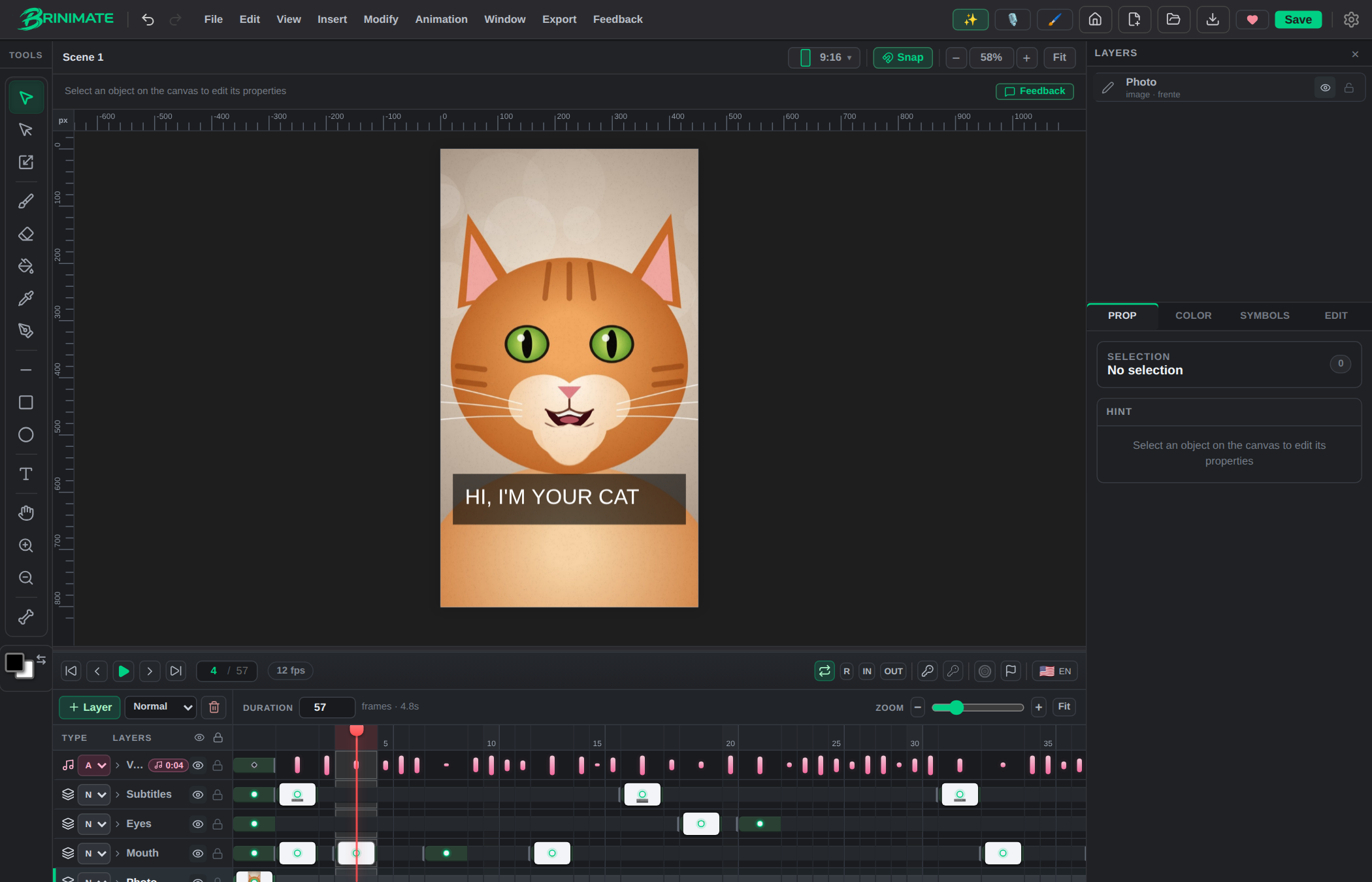
- Photo: your picture, in the format you chose.
- Mouth: the jaw and the inside of the mouth, synced to every word.
- Eyes: the eyelids on the frames where it blinks.
- Subtitles: the text in small groups of words, placed where it doesn’t cover the mouth.
- Voice: the audio track.
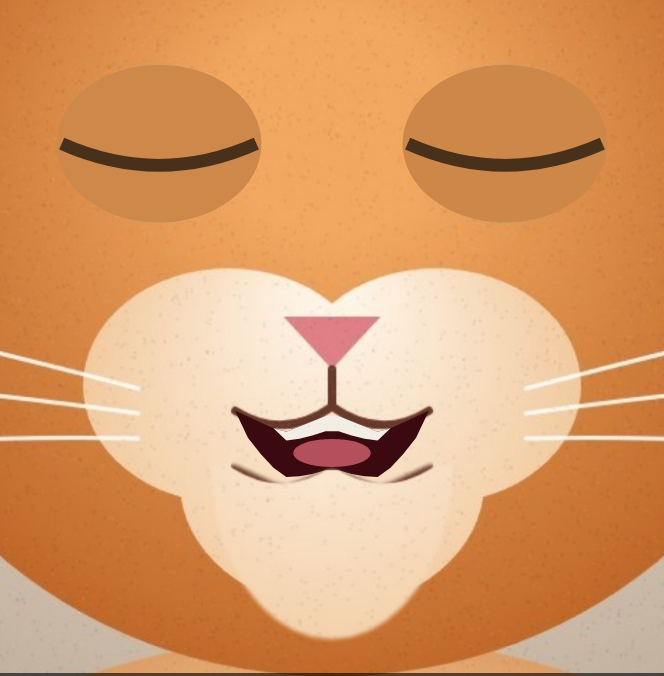 The eyelid takes the colour of the skin just above the eye, so it works the same on a person as on a ginger cat.
Press Play to watch it with sound and, when you like it, Export video downloads an MP4 or WebM ready to post.
Like everything in Brinimate, the result isn’t a sealed box: they’re ordinary layers. Move the subtitles, change their text, add stickers or a background, or keep animating on top.
Tips for the best result
- The line goes right between the lips. Draw it lower and only the chin moves; higher and the upper lip moves too.
- Faces looking at the camera. With the head turned a lot, the jaw drops in an odd direction. A gentle tilt is fine: the jaw follows the angle of your line.
- Short sentences. They sound more natural and the subtitles read at a glance.
- Pets: draw the line where the lips meet, below the nose. It works surprisingly well.
It all happens in your browser: the photo is never uploaded to a server. Only the text goes to the voice service to be turned into audio.