Create Your Character From a Photo and Make It Act in Your Skits
Turn a photo of you, a friend or your pet into a Brinimate character: it talks with its own mouth or a cartoon one, blinks and acts in any skit template.
LuisOA
Brinimate Team
Create Your Character From a Photo
Brinimate’s skits come with a cast of characters. Now the star can be you, your best friend or your cat: upload a photo, mark the mouth and eyes, and that character joins any template — the joke, the two arguing NPCs, the podcast — with a voice, a synced mouth and blinking.
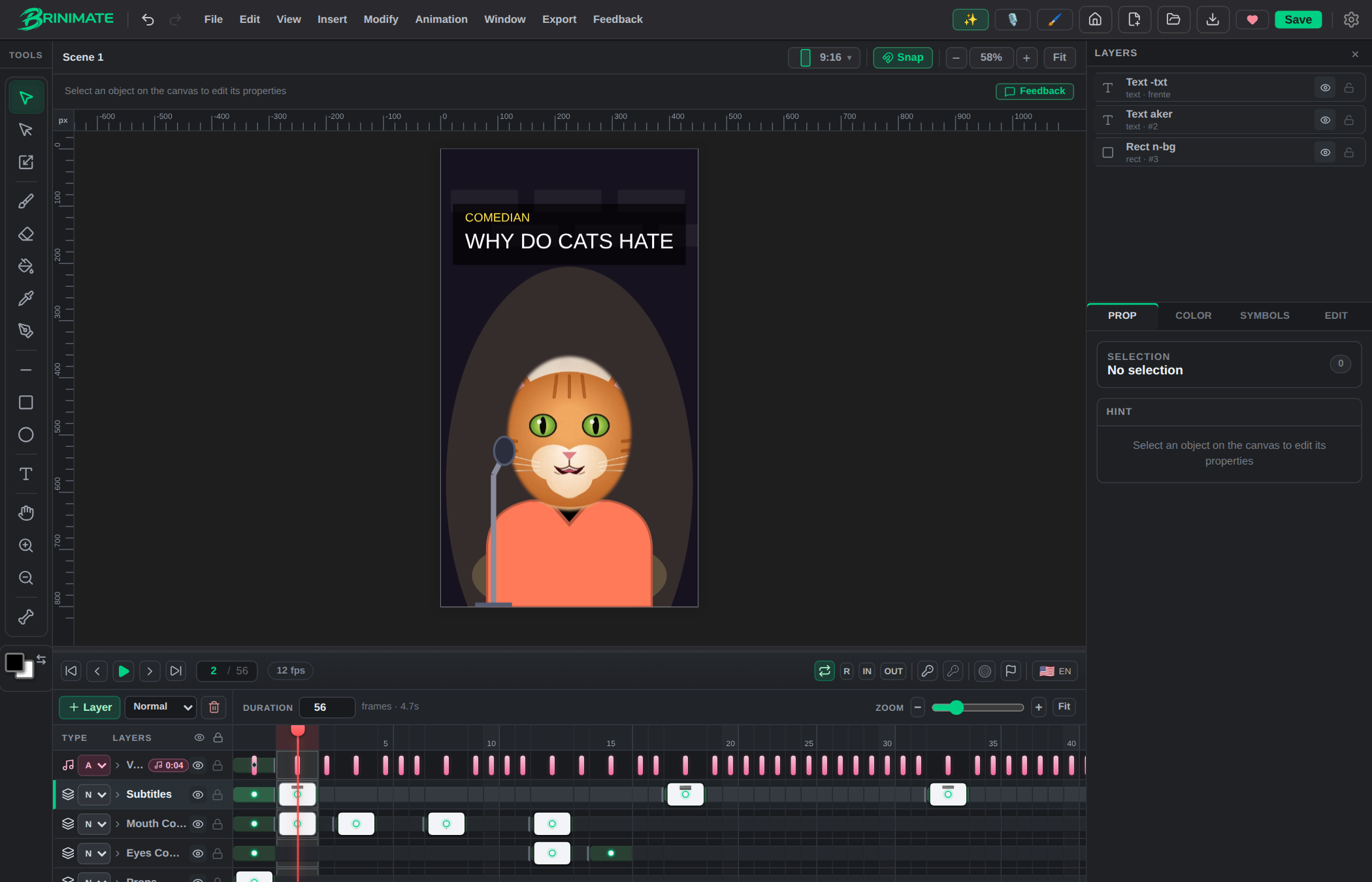
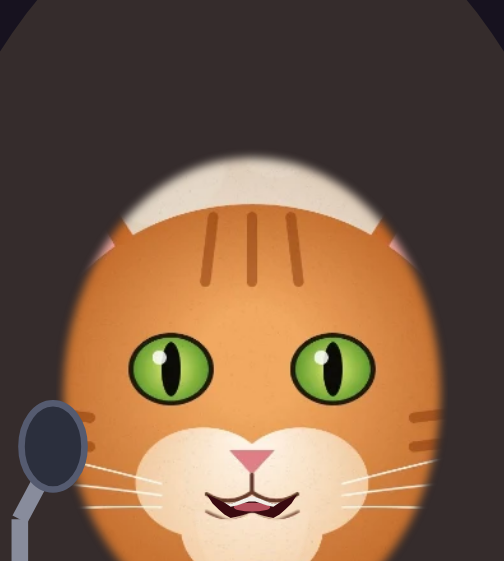 Michi in the joke template: it’s the cat’s photo, with its own mouth opening as it talks.
Step 1 — Open “Create your character”
It’s on the start screen, under Insert → Create character… and on mobile under Add. Also — and this is the handiest — inside a skit: in the cast row, the first tile is + Create. A character made from there goes straight into that role.
Step 2 — The photo and the marks
Pick a photo with the face looking at the camera. Then, just like in “Make your photo talk”:
- With the pencil, draw a line along the lips, from one corner of the mouth to the other.
- Tap the centre of each eye.
The dashed oval is the face that gets cut out. To take in the hair or a cap, raise Face size.
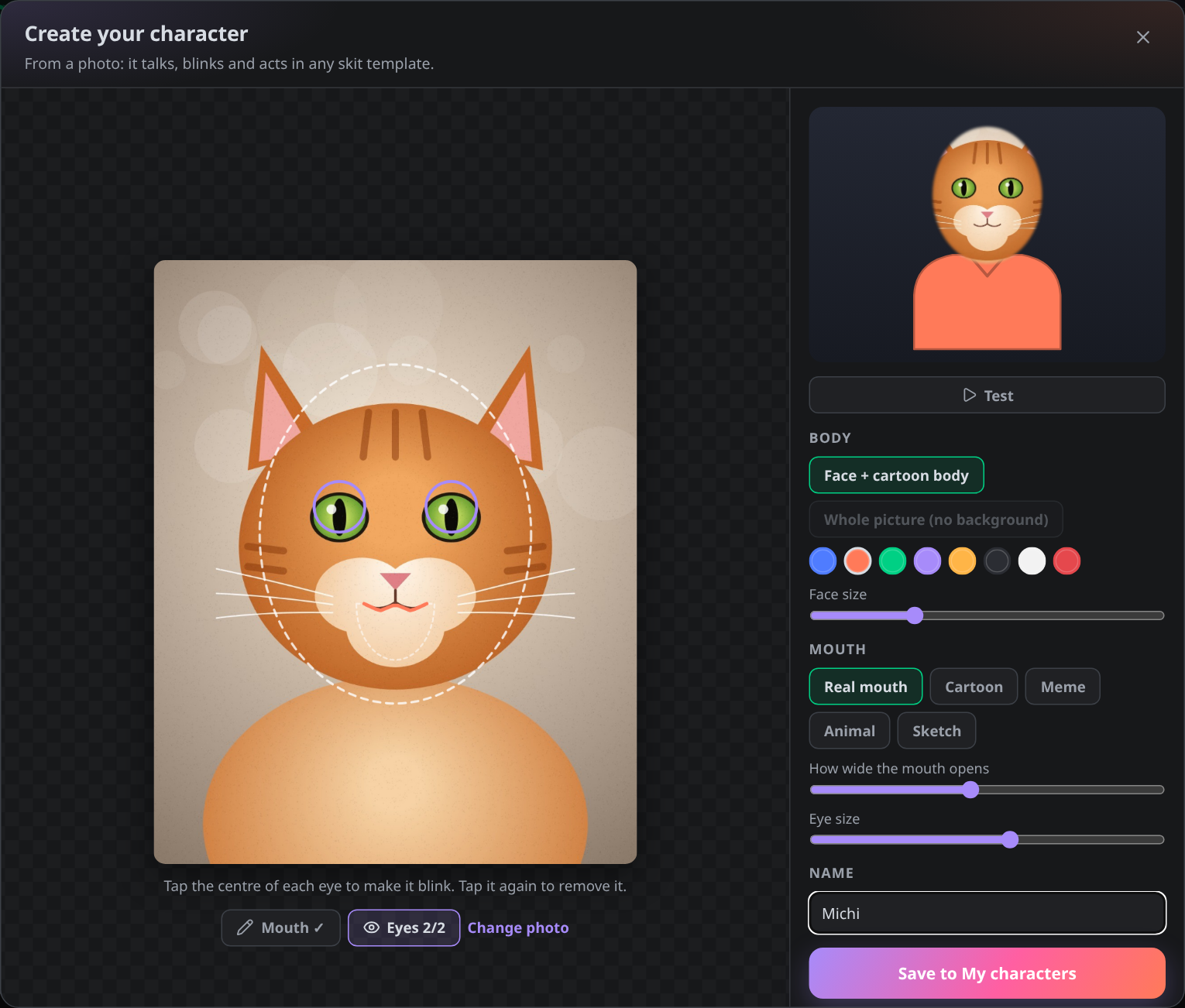 You mark on the left; on the right you see the finished character after every change. With ▶ Test you watch it talk and blink.
Step 3 — Pick the style
Body
- Face + cartoon body: the face in an oval on a cartoon body. You choose the shirt colour. It works with any photo, whatever its background.
- Whole picture (no background): if the photo already has no background (a transparent PNG, for example after removing it in Bricanvas), it’s used whole, as it is. Brinimate detects it by itself.
Mouth
- Real mouth: the lower part of the face drops like a jaw on every syllable. The most natural one.
- Cartoon, Meme, Animal or Sketch: Brinimate covers the photo’s mouth with the skin tone and draws a cartoon mouth on top, with the same shape for each sound as the catalog characters.
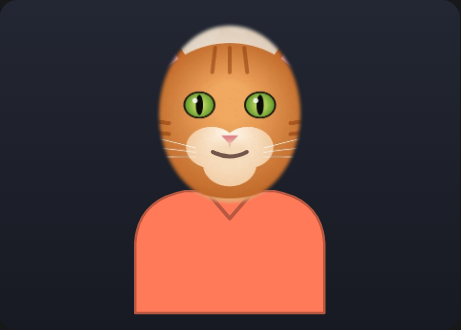 With a cartoon mouth the result is more “sticker”: great for memes.
Give it a name and press Save to My characters.
Step 4 — Make it act
Saving opens the templates screen. In any template, your character comes first in the cast row of every role.

Write the dialogue, pick the voice and press Generate skit. Your character talks with its mouth synced word by word, blinks, and the subtitles are placed where they don’t cover any mouth.
My characters
The characters you save stay in your browser: the photo is never uploaded to a server. In the maker you have the My characters list with two buttons per character:
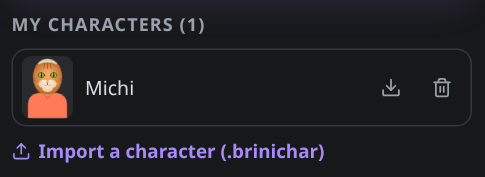
- Export downloads a
.brinicharfile. Use it as a backup or to hand it to a friend. - Import a character loads a
.brinichar. Brinimate checks the file thoroughly before accepting it: only embedded pictures (PNG, WebP or JPEG) and shapes, never links or code.
If you share a skit’s remix link, whoever opens it sees the template’s original cast: your characters only travel if you hand over the file.
Tips
- Good light and a face looking at the camera: the cut-out and the eyelid colour come out better.
- The mouth line right between the lips, as in “Make your photo talk”.
- Pets: the line goes below the nose, where the lips meet.
- For a full-body character, remove the photo’s background in Bricanvas and choose Whole picture.