
Pressure-Sensitive Brushes in Brinimate: 55 New Brushes and 9 Erasers That Respond to Your Tablet
Brinimate adds 55 new brushes (pencil, ink, watercolor, oil, airbrush, textures) and 9 erasers. All of them respond to your drawing tablet's pressure: press harder and the line gets thicker or darker. Free, in your browser.
LuisOA
Brinimate Team
Pressure-sensitive brushes
If you draw with a tablet, Brinimate now feels how hard you press. 55 new brushes and 9 erasers arrive, and every one of them responds to pressure: a light touch gives a thin, light line; press harder and it comes out thick and dark. Just like on paper.
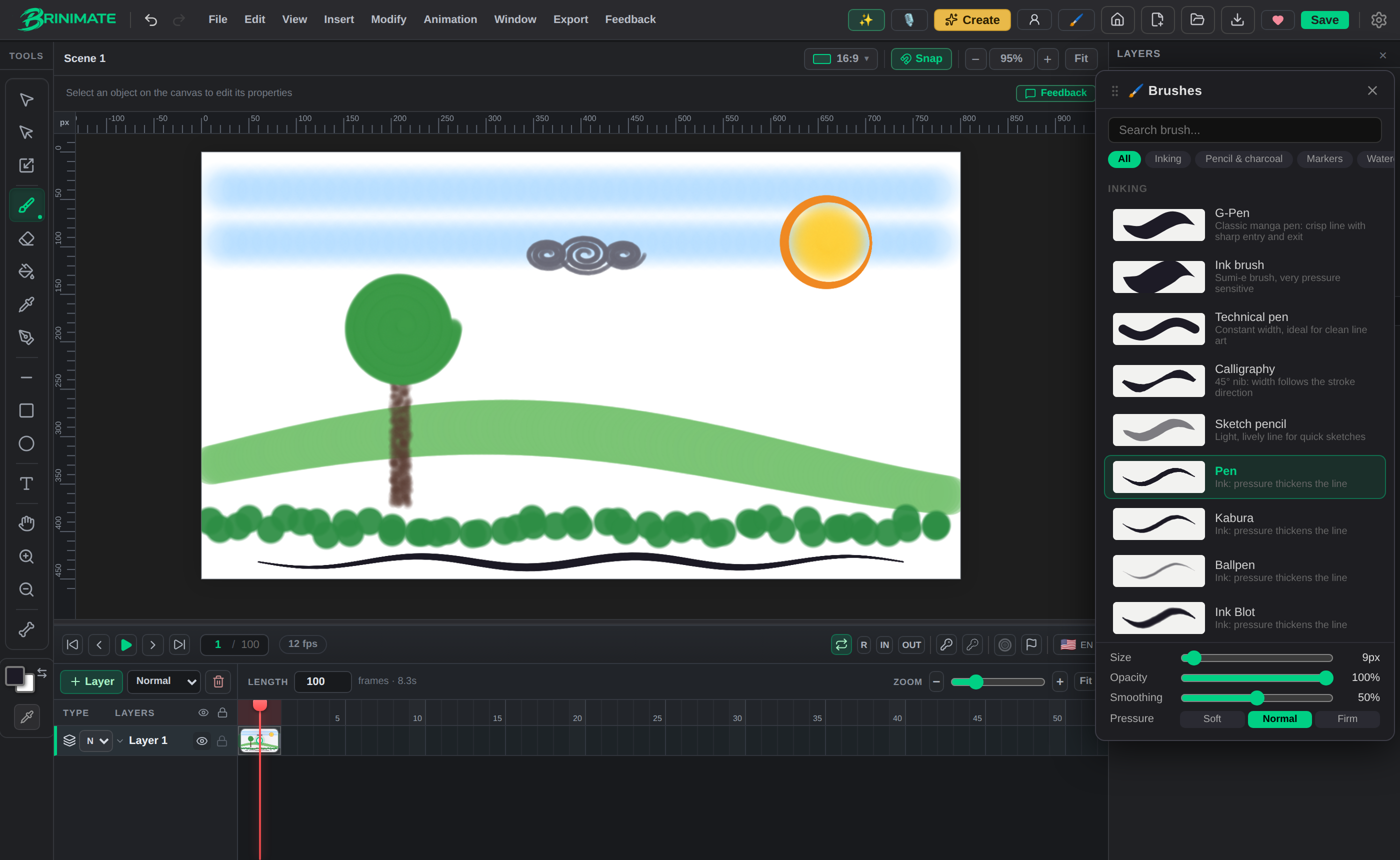 Airbrushed sky, ink sun, pencil cloud, charcoal-and-oil tree, textured grass: all with pressure.
How to use them
- Tap the Brush in the toolbar (or press
B). The brush panel opens. - Pick a family at the top: Inking, Pencil & charcoal, Markers, Watercolor, Paint, Airbrush & spray or Textures & effects. You can also search by name.
- Tap a brush. Each new brush comes with the size it was designed for; change it with the slider at the bottom.
- Draw on the canvas.
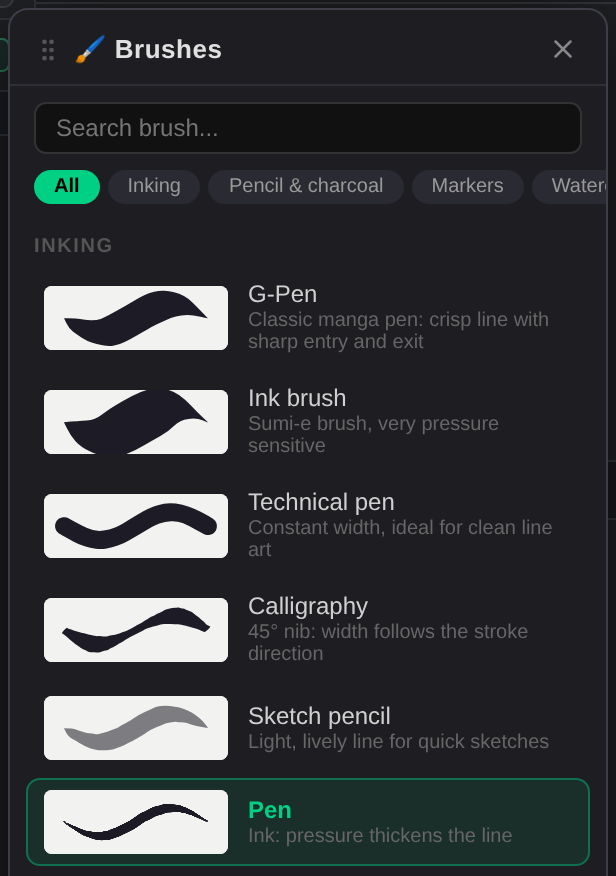 Each preview shows the brush’s real stroke, with its soft entry and exit.
What pressure does
Each family responds in its own way:
- Ink: pressure thickens the line. This is where you’ll notice it most when inking.
- Pencil & charcoal: pressing darkens the graphite, like a real pencil.
- Airbrush: pressing releases more paint.
- Watercolor & paint: with light pressure they lay transparent layers that build up.
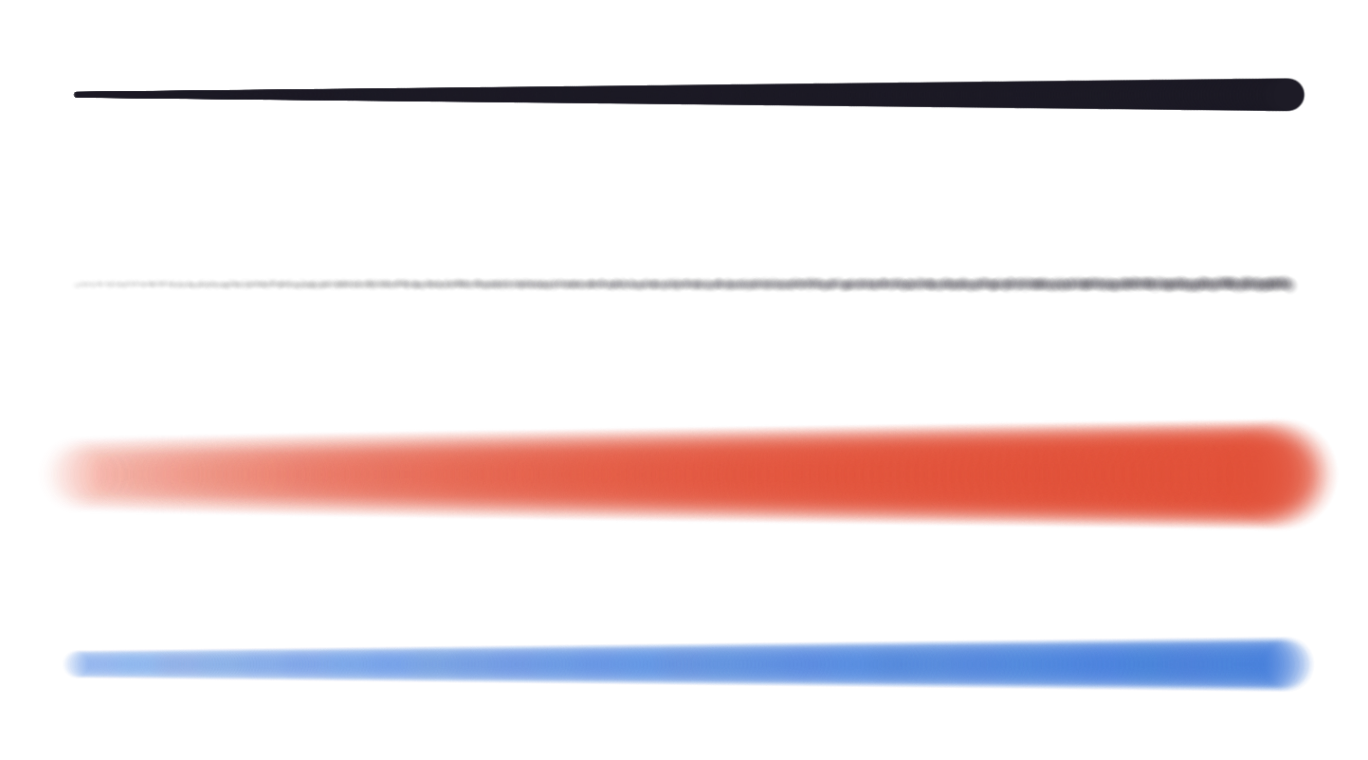 The same gesture, from light to heavy pressure: ink, pencil, airbrush and watercolor.
No tablet? With a mouse or a finger they paint evenly, at the size and opacity you picked. You lose nothing.
Tune the pressure to your hand
At the bottom of the panel there’s Pressure, with three options:
- Soft: a light touch already paints strong. For a relaxed hand.
- Normal: exactly as the tablet sends it.
- Firm: press harder to reach the maximum. For people who press a lot.
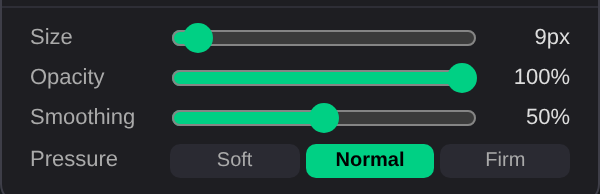 Brinimate remembers your choice the next time you open the editor.
Erasers with pressure
Tap the Eraser and the panel lists only erasers: the Classic eraser you know and 9 new ones. The new erasers remove more the harder you press, so you can lighten an area without wiping it out.
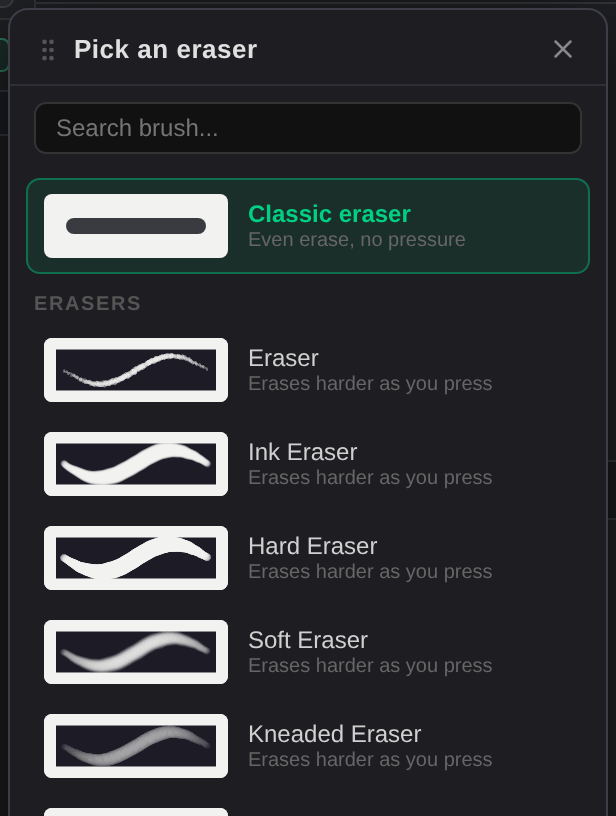 The Classic eraser erases evenly; the others respond to pressure.
Made for animation
Every stroke is still an object: you can move, scale or flip it, and copy it to another frame. With the timeline’s onion skin you see the previous drawings while you draw the next one, so you can animate frame by frame with the pen and pressure you’d use on paper.
Tablets: it works in the browser with Wacom, Huion and XP-Pen tablets, the Apple Pencil on iPad, and Surface and Android pens. On Windows, if pressure doesn’t respond, turn on Windows Ink in your tablet’s settings.
Try it in the editor: free, nothing to install.