
Brinimate Mirror (beta): Animate a Character with Your Face and Voice, Free in Your Browser
Brinimate Mirror uses your webcam and microphone so a 2D character copies your expressions, mouth and voice live. Record the take and edit it as regular animation. Free, no account, and your camera image never leaves your device.
LuisOA
Brinimate Team
Brinimate Mirror (beta)
Turn on your camera, talk, and a character does the same: it tilts its head, blinks, raises its brows and moves its mouth with your voice. When you like it, record the take and it lands on the timeline as animation you can edit, not a locked video.
It’s free, runs in your browser, and your camera image never leaves your device.
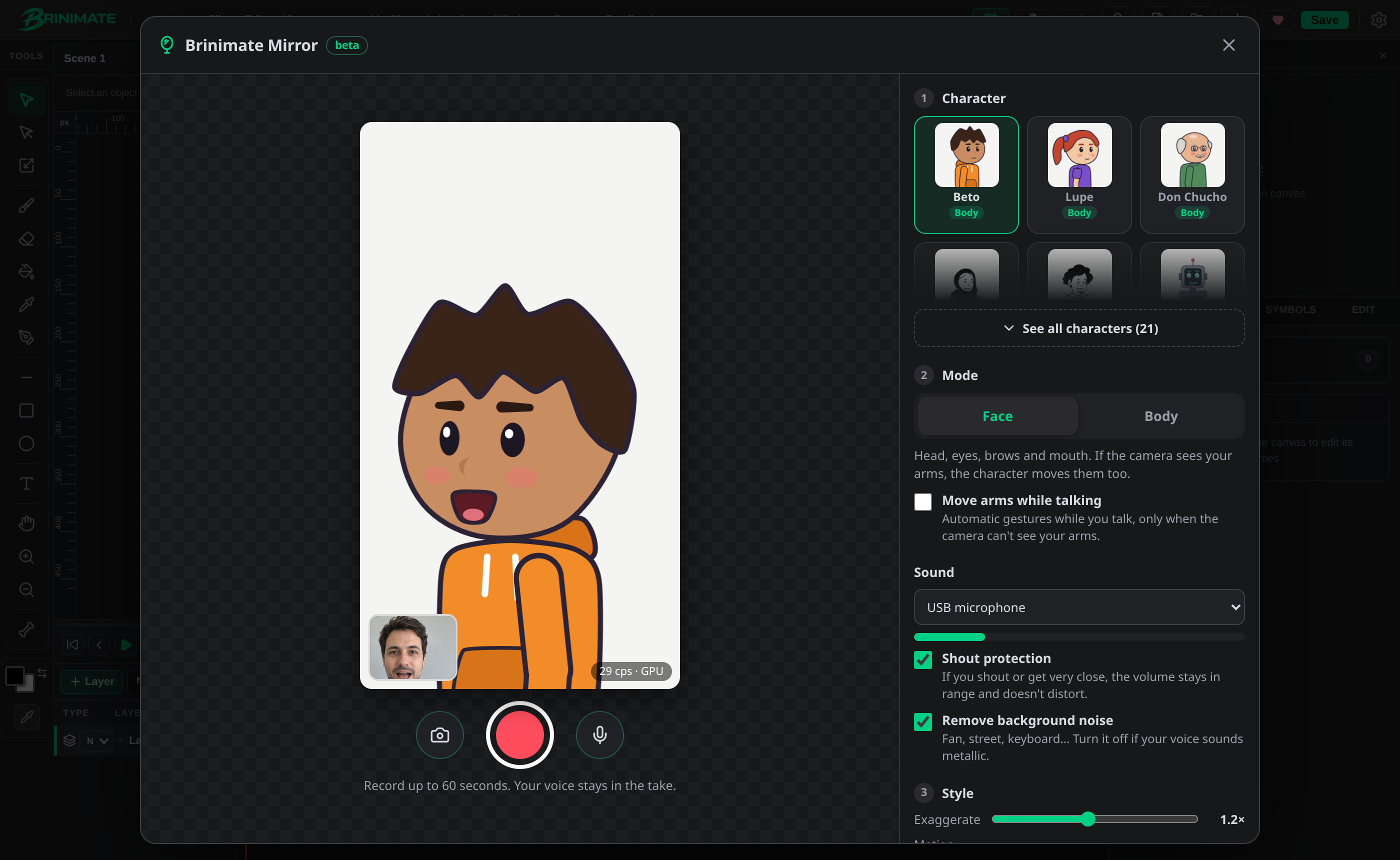 Beto opens his mouth because the person on camera is talking. Bottom left, your camera as a thumbnail.
How to use it
- Open the editor and tap Brinimate Mirror on the start screen. Inside the editor it’s also in Quick create and Insert.
- Tap Turn on camera and mic. The browser asks for permission once.
- Calibrate your face (see below).
- Pick a character and try it: talk, smile, tilt your head.
- Tap the red button: it counts 3, 2, 1 and records up to 60 seconds.
- Review the take. If you like it, tap Use this take and it goes to the timeline with your voice.
Calibrate your face
Before you start, Mirror asks you to look straight at the camera with a relaxed face and closed mouth for about 2 seconds. That way it learns your resting face: with glasses, a beard, low light or a camera off to the side.
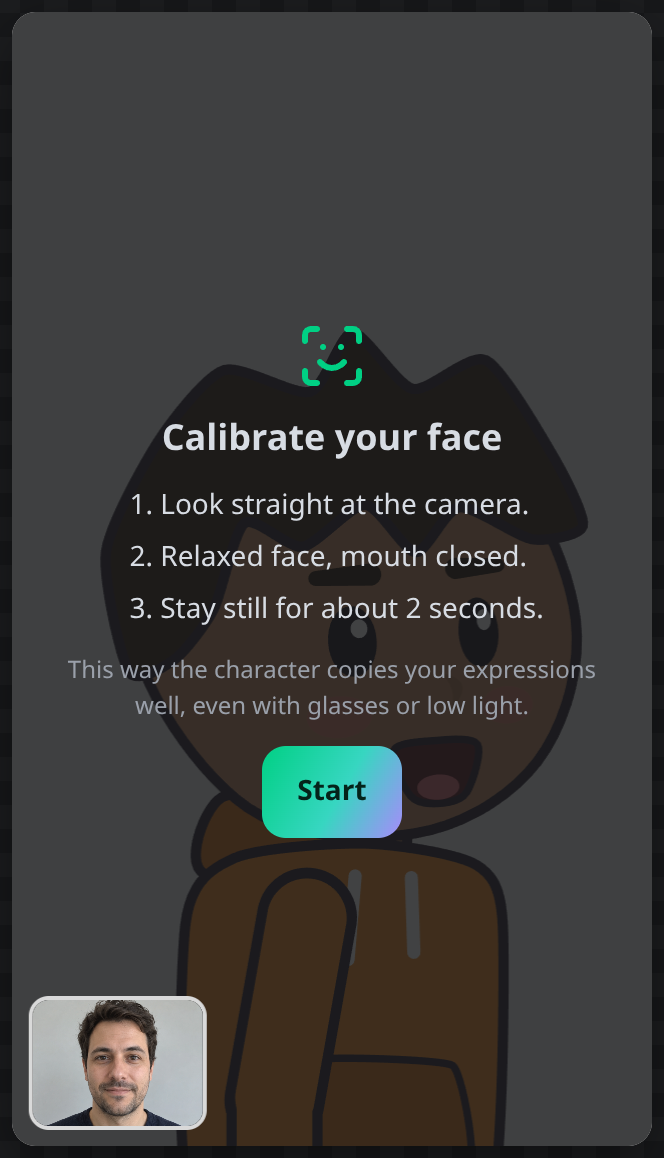 You read the instructions first; it calibrates when you tap Start.
If you move or the light changes, use Recalibrate.
Pick your character
There are two kinds of characters:
- Full body (Beto, Lupe and Don Chucho): they turn their head, lean and, if the camera sees your arms, move them too.
- From the skits: the same characters as the skit templates, waist up.
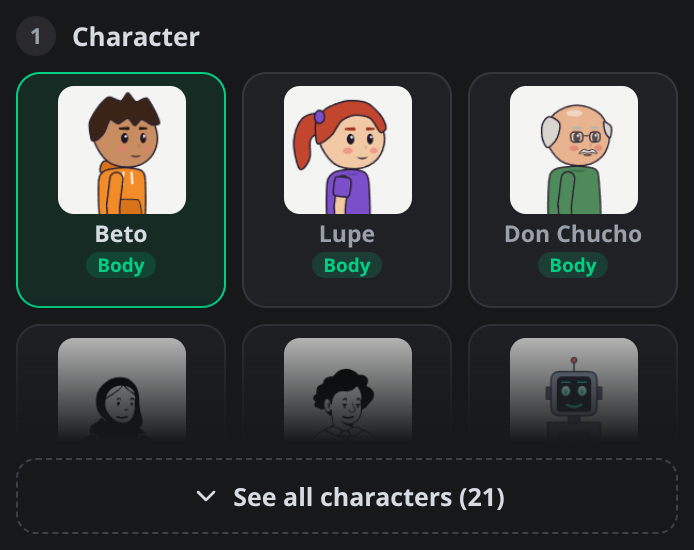 Tap See all characters to open the full list.
Face mode and Body mode
- Face: a medium shot. Head, eyes, brows and mouth.
- Body: the full-body character. Step back until the camera sees your shoulders and arms.
Sound
If you record with a mic, your voice stays in the take. Three settings help it sound good:
- Microphone: if you have a USB mic, choose it in the list.
- Shout protection: if you shout or get very close, the volume stays in range and doesn’t distort.
- Remove background noise: turns down the fan, the street or the keyboard. If your voice sounds metallic, turn it off.
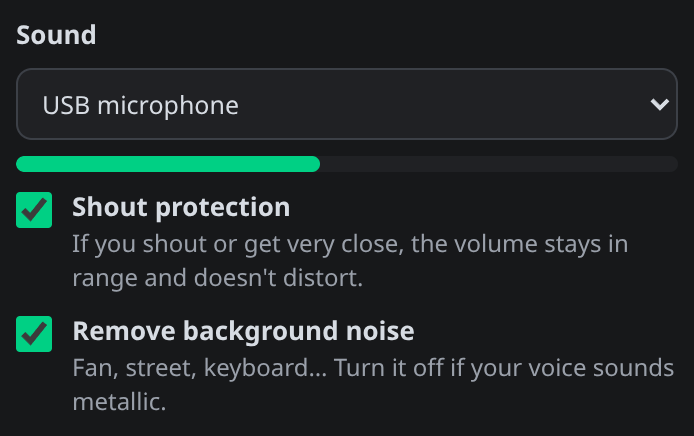 The meter turns orange when Mirror is taming a shout.
When the camera sees your face, the character’s mouth follows yours: loud background noise doesn’t open it.
Style
- Exaggerate: makes head movements bigger (0.5× to 2×).
- Motion: Smooth, On twos or On threes. “On twos” holds each drawing for two frames, like anime, and keeps the project lighter.
- Background: none, green (for keying) or a set.
- Format: 9:16 for TikTok, Reels and Shorts; 1:1 or 16:9.
Your take is editable
When you use the take, Brinimate creates a project with the character on its own layer, the background and your voice. Each drawing is a regular keyframe: fix a gesture, move the character, add text or export the video.
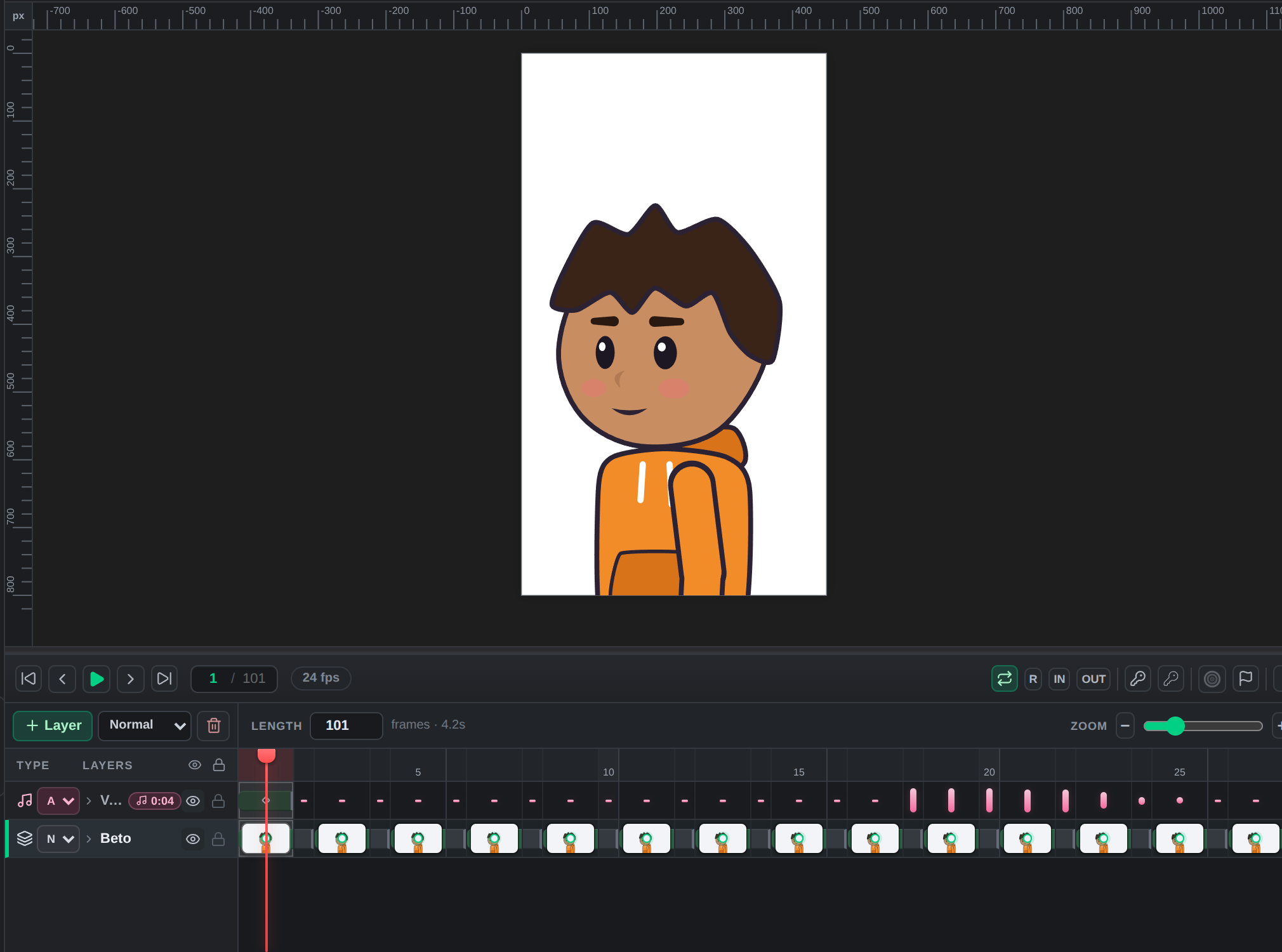 The take is already on the timeline, ready to edit or export.
Go live
On a computer, Open window for OBS opens a clean window with just the character. Capture it in OBS as a window; with the green background you can key out the character and put it over your stream or video call. No servers involved: everything happens on your device.
Everything one click away: Quick create
Inside the editor, the Quick create button in the top bar opens the same features as the start screen: Brinimate Mirror, Make your photo talk, Create your character, voiced skits and more.
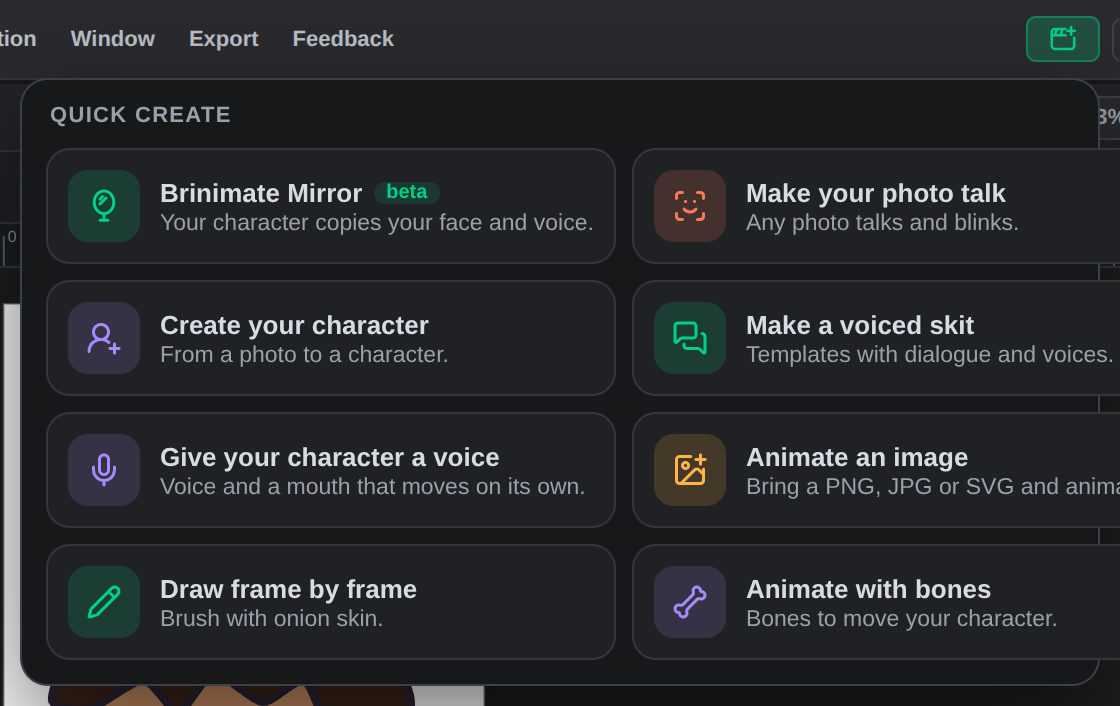 On a phone, find them under the Add button at the bottom.
FAQ
Is it free? Yes, free and no account. It’s in beta.
Is my camera uploaded? No. Tracking runs on your device; only the character’s animation is saved.
Do I need a good camera? No. A regular webcam works; good front lighting helps.
And without a camera? Choose Just my voice: the character moves its mouth and head with your voice and blinks on its own.
Does it work on phones? Yes, with the front camera. On slow devices tracking runs slower, but the recording stays smooth.
Try it in the editor. If something doesn’t work for you, tell us with the Feedback button: Mirror is in beta and we keep improving it.