
How to Save Your Animation in Brinimate and the New .bric File
Save your project in the browser with Ctrl+S, get it back when you return, and take it anywhere in a single .bric file with Save as .bric. Free, no account.
LuisOA
Brinimate Team
Saving your animation in Brinimate
Brinimate runs in your browser with no account, so your work can be saved two ways: in the browser (quick, to pick up tomorrow) and in a .bric file (your safe copy, to take anywhere).
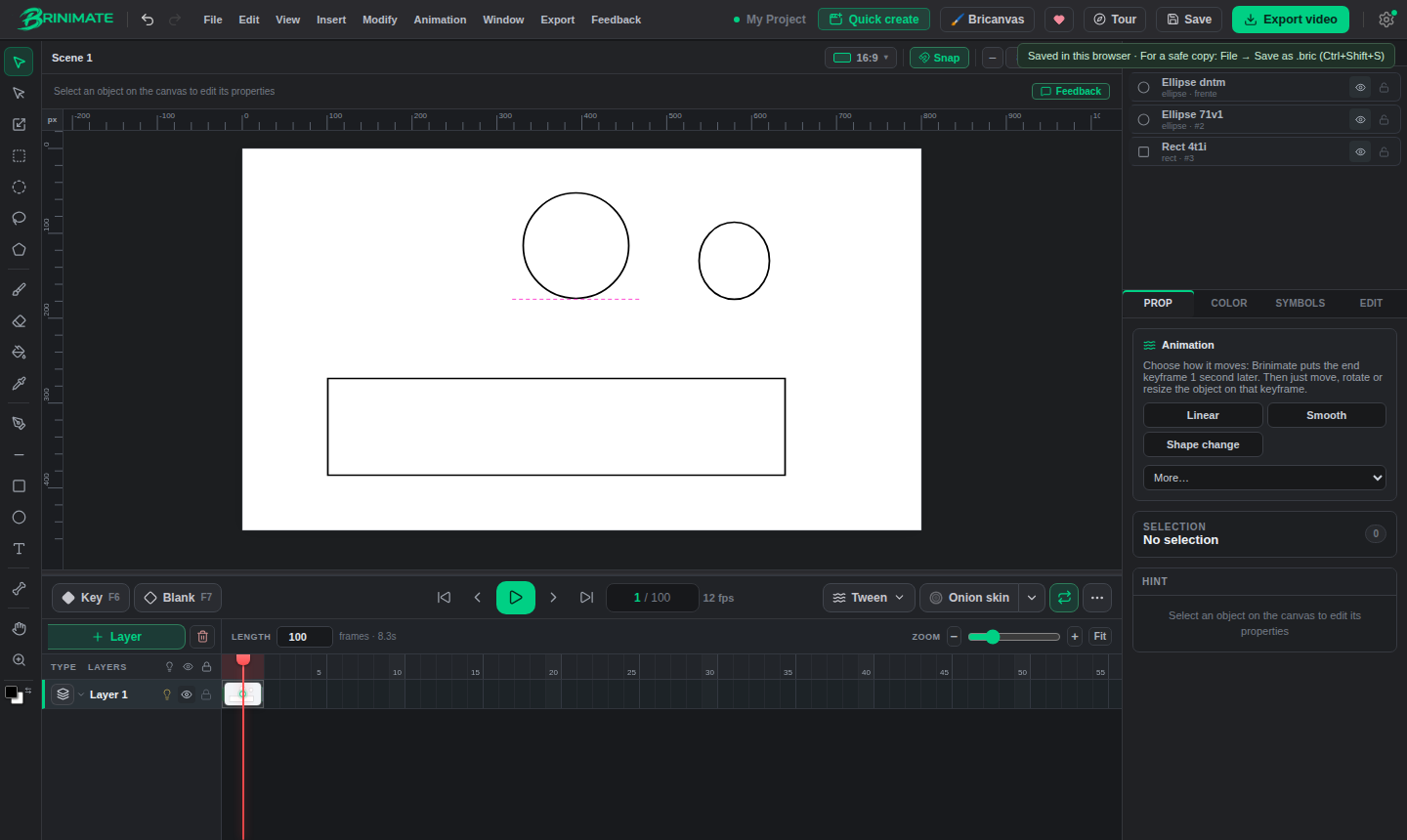 Press Save and the notice shows at the top right. The first time, it also reminds you how to make a safe copy.
1. Save in the browser (Ctrl+S)
- Press Save in the top bar, or Ctrl+S (Cmd+S on Mac).
- You’ll see “Saved in this browser”.
- Close the tab whenever you like. When you open Brinimate again in that browser, your project is there as you left it.
Autosave also keeps saving while you work. If you ever want it off, it’s under the gear icon at the top right.
What’s saved in the browser lives only in that browser on that computer. Clear your browsing data, use a private window or switch computers and it won’t be there. That’s what the .bric file is for.
2. Save as a .bric file (Ctrl+Shift+S)
- Open File → Save as .bric… or press Ctrl+Shift+S.
- In Chrome and Edge you choose where it goes, like in any desktop app. In other browsers and on phones it goes to your downloads folder.
- Keep that file wherever you want: your computer, a USB stick, Google Drive…
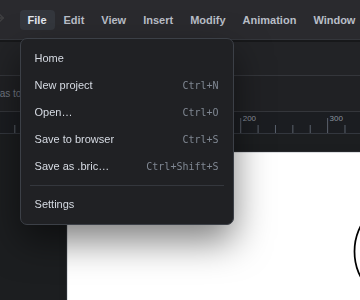 Both ways to save, in the File menu.
A .bric is Brinimate’s own file: your whole project in a single file, with layers, frames, symbols, bones and images inside. It isn’t a zip or a text file: images are stored as they are and the rest is compressed, so it’s lighter than the old .json. If the file gets damaged, Brinimate notices and tells you instead of opening something broken.
3. Open a .bric (Ctrl+O)
- Open File → Open… or press Ctrl+O.
- Pick your
.bricfile. The project opens ready to keep animating.
You can also open it from the start screen with Open project. Older .json projects and Lottie files still open the same way.
What about sharing the animation?
The .bric is for editing later. To show your animation, use Export video (MP4 or WebM, ready for TikTok, Reels or YouTube) or Export → Export Lottie for a website or an app.
In short: Ctrl+S to pick up tomorrow in the same browser, Ctrl+Shift+S for a safe copy in a .bric. Open the editor and try it.