
How to Animate a Stickman for Free: Walk, Run, Jump and More in Brinimate
Insert a stickman, pose it by dragging its joints and animate it in one click: walk, run, jump, dance, punch, kick. Free, in your browser, no account.
LuisOA
Brinimate Team
Animating a stickman in Brinimate
Stickmen (stick figures) are the fastest way to tell an animated story: everyone reads them instantly, they’re quick to animate and they fit any topic, from a history video to a 10-second joke. Brinimate gives you a stickman ready to animate, with nothing to draw.
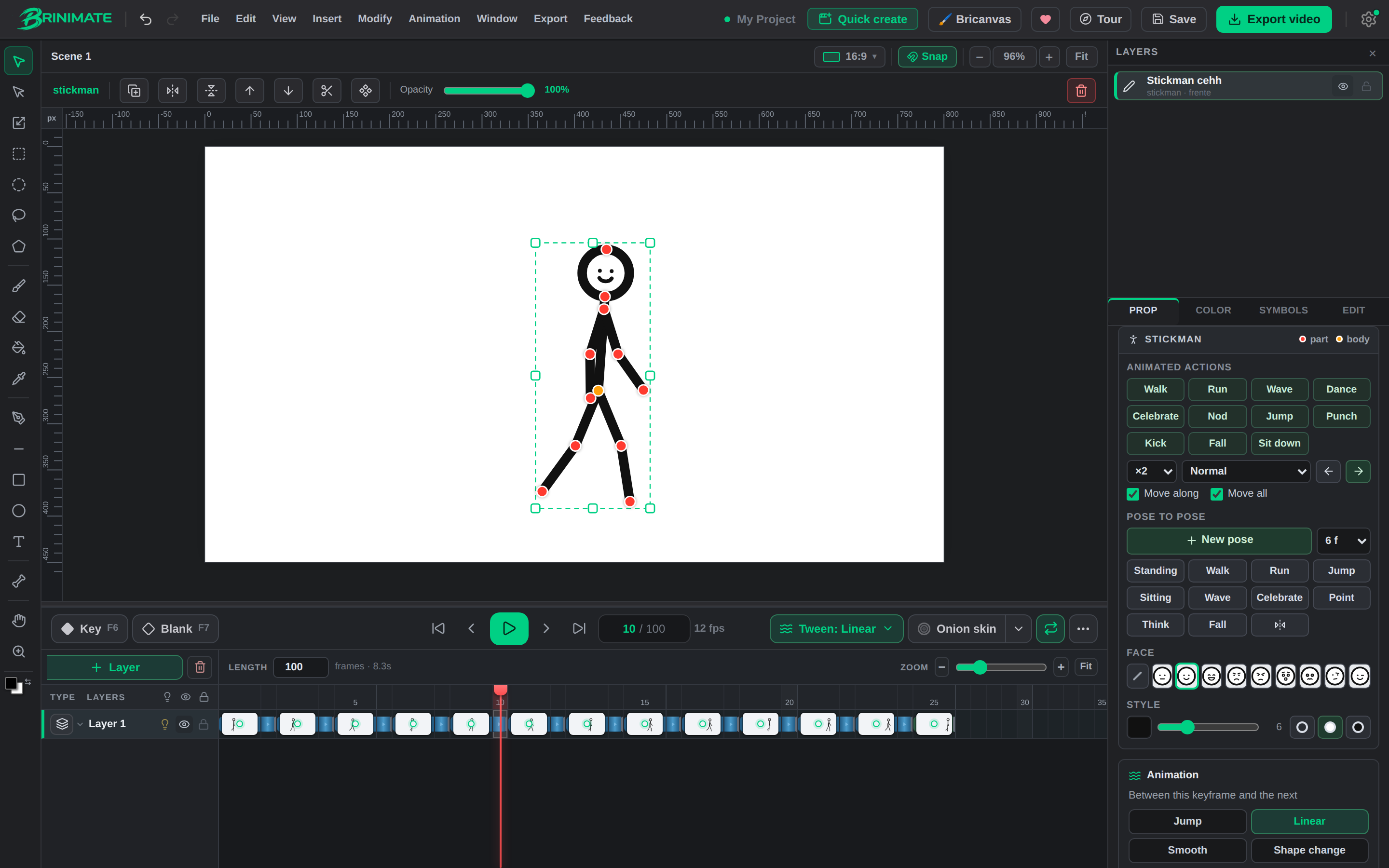 A stickman halfway through a walk. On the right, the panel with animated actions, poses and faces.
1. Insert a stickman
Three ways in:
- Insert → Stickman in the top menu.
- The Animate a stickman card on the start screen or in Quick create.
- On your phone, Add → Stickman.
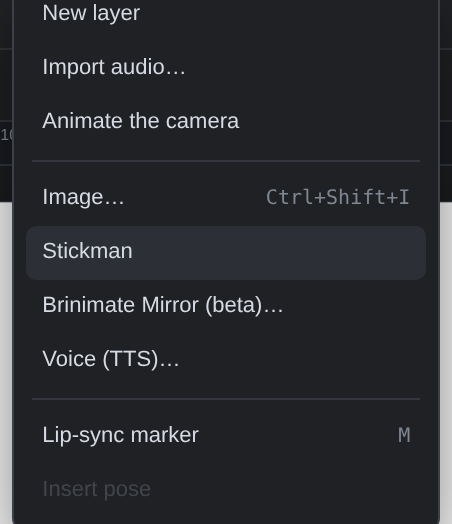 The stickman shows up standing in the middle of the canvas, already selected.
2. Move it like a puppet
Every joint has a red dot. Drag it and that part turns around its joint: move the elbow and the forearm comes along; move the hand and only the forearm turns. The orange dot on the hips moves the whole body.
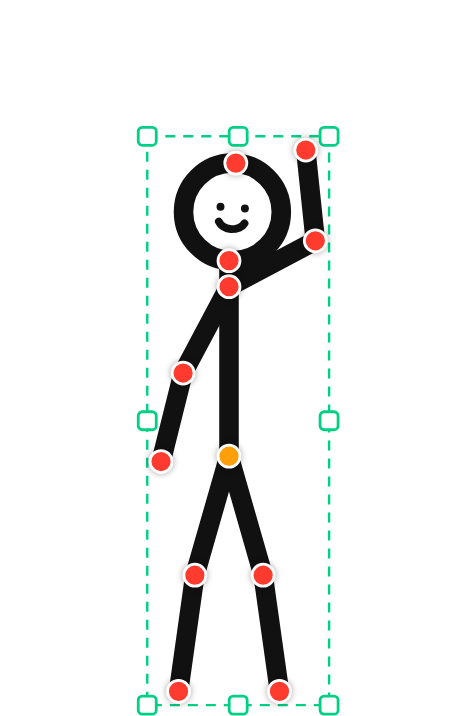 Red: each part. Orange: the whole body.
3. Animated actions: Walk walks
The Stickman panel (Properties tab) has the animated actions: Walk, Run, Wave, Dance, Celebrate, Nod, Jump, Punch, Kick, Fall and Sit down. Press one and Brinimate builds every frame of the move, starting from the frame you’re on.
The actions are the green buttons. Right below them you choose:
- ×2, ×3…: how many times it repeats (walk, run, dance… up to 30).
- Speed: slow, normal or fast.
- ← →: which way it goes.
- Move along: when on, it really walks or runs that way; when off, it moves in place.
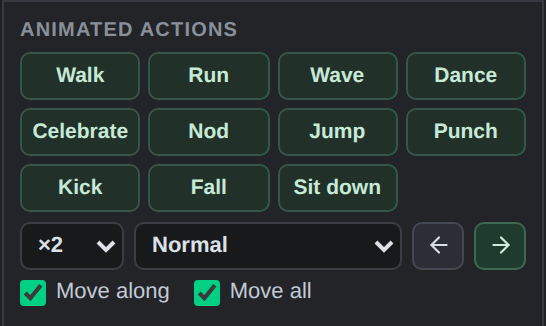 The actions and their options, in the Stickman panel.
The feet stay on the ground by themselves: while walking, the standing leg never sinks or floats, and a jump crouches, takes off and lands back on the same floor.
If several stickmen do different things at the same time, put each one on its own layer. That way one figure’s action never touches the other’s frames.
4. Chain actions
When an action ends, the playhead stays on its last frame. Press another one and it carries on from there: walk, then jump, then celebrate, with no cuts.
That’s how you put together long scenes in a few minutes. Each pose is just a few numbers, so even a long video keeps the project light.
5. Move the whole animation
Built the walk in the middle but wanted it further left? Drag the stickman (by its head, or with the orange dot) and its whole animation moves with it: the complete walk, not just the first frame.
The Move all box in the panel controls this, and it’s on by default. If you animate pose to pose and want to move the stickman on the current frame only, turn it off.
6. Pose to pose (full control)
If you’d rather animate by hand:
- Put the stickman in its first pose.
- Press New pose: Brinimate makes the next keyframe a few frames ahead (6 by default, change it next to the button) with smooth motion between the two.
- Move the stickman into its new pose. Repeat.
Brinimate builds the in-between frames by rotating the joints, so arms and legs never shrink halfway through a move. The quick poses (Standing, Walk, Run, Jump, Sitting, Wave, Celebrate, Point, Think, Fall) and Mirror pose save you work.
7. Face and style
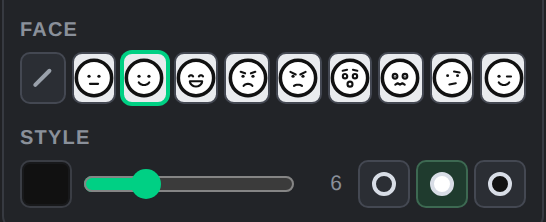 Nine emotions (or no face), colour, thickness and a hollow, white or filled head.
The face switches halfway between two poses, the way cartoons do. If the head is filled with the body’s colour, the face is drawn in white so it still shows.
8. Export
When you’re done, Export video gives you an MP4 ready for YouTube, TikTok or Reels. The red dots and the selection box don’t show up in the video.
Next step? Put several scenes together, add a voice with Insert → Voice (TTS) or import your own audio, and arrange the frames on the timeline: you can now pick several keys at once to move or delete them together.