Importing Images: Bring Your PNGs, Photos and Sprites to the Canvas
How to insert images in Brinimate on desktop and mobile, which formats are accepted, why the bitmap never degrades when transformed, and the limits to know.
LuisOA
Brinimate Team
Importing Images to the Canvas
Until now Brinimate only drew vectors. Now you can bring in any image: a PNG with transparency, a photo, a downloaded sprite, a background painted in another app.
How to insert one
On desktop: Insert → Image…, or the shortcut Ctrl+Shift+I.
On mobile: the Add → Image button.
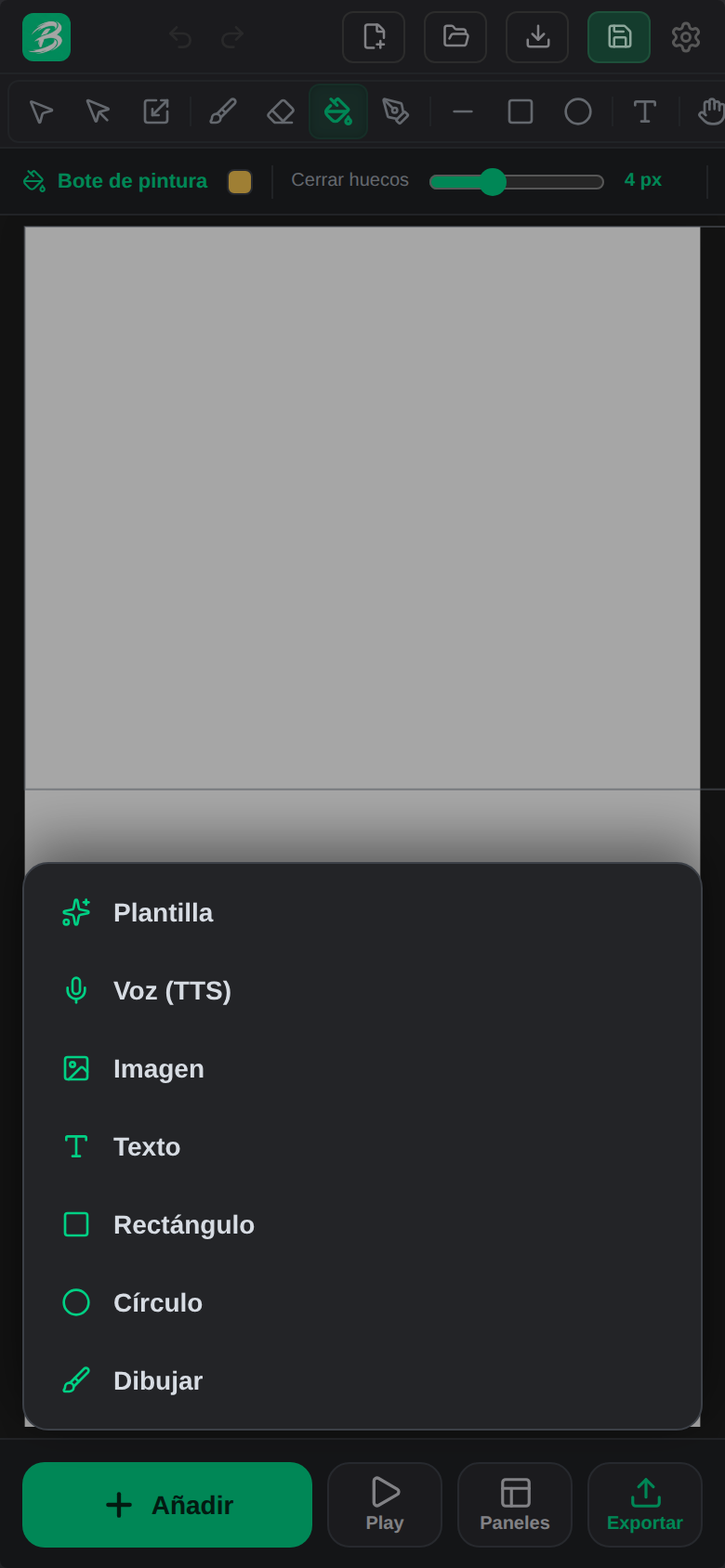 On mobile, “Image” lives in the same Add menu as templates, text and shapes.
The image lands centered on the canvas, scaled to sit comfortably in frame, and already selected so you can move it.
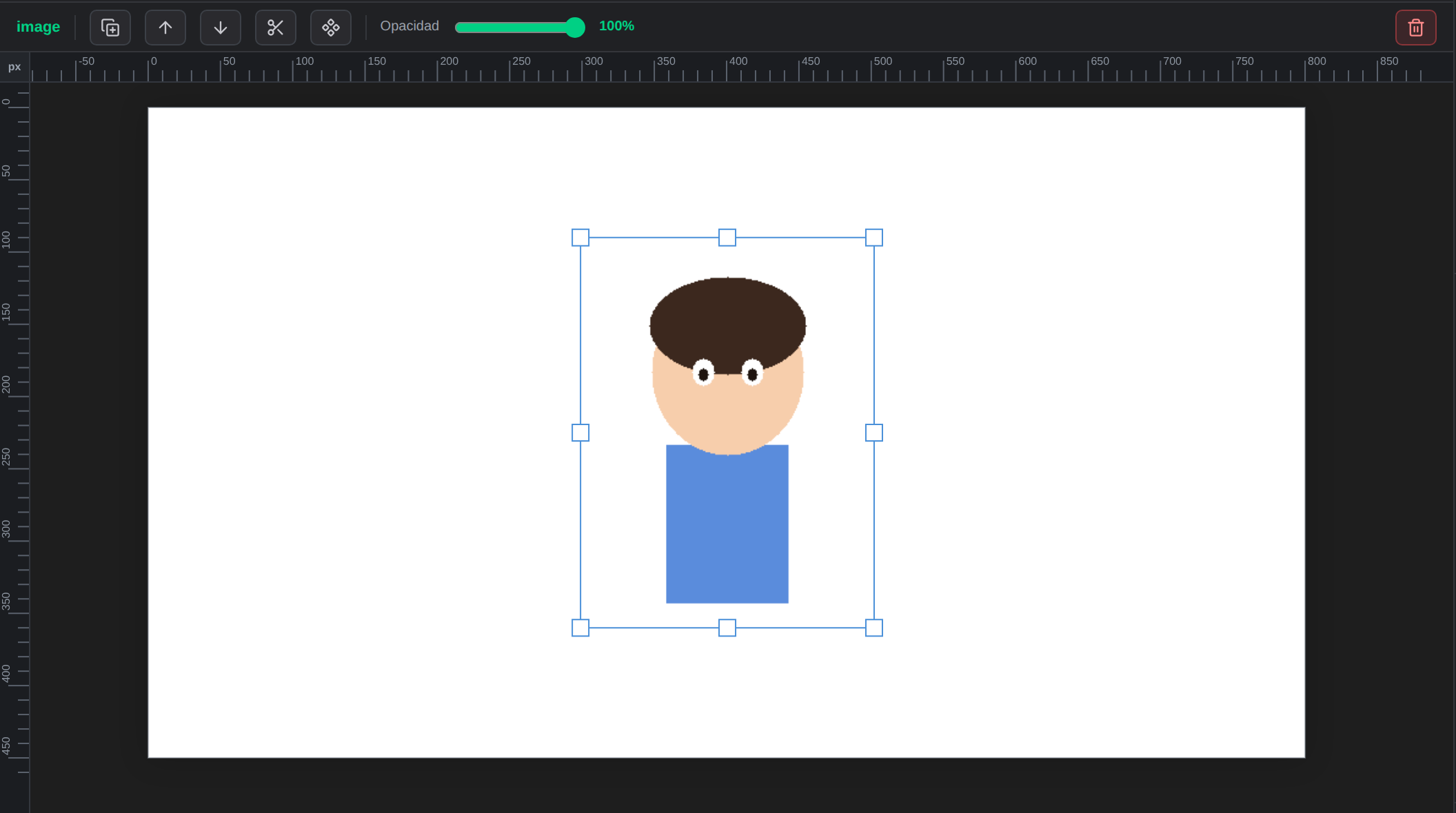 Freshly inserted: centered, fitted to the canvas and selected.
Formats and limits
| Accepted | PNG, JPG, WEBP, GIF |
| Not accepted | SVG |
| Max file size | 40 MB |
| Resolution | Downscaled to a 1920 px longest edge |
Why no SVG? An SVG file can carry scripts. Everything that enters Brinimate is validated data, never code — that’s the project’s security rule. For vectors there’s the character pipeline, which extracts geometry only.
Why downscale to 1920 px? Because the image is stored inside the project (like audio), and an unprocessed phone photo would turn your project into tens of megabytes. 1920 px is plenty for 1080p output and keeps the file manageable. PNG and WEBP keep their transparency; everything else is re-encoded as high-quality JPEG.
What you can do with it
An image behaves like any other object:
- Move: drag it (press and drag in one gesture, no pre-click needed).
- Transform: with Q you can rotate, scale and skew it.
- Animate: keyframes and tweens like any element.
- Inspector: real X, Y, width, height and opacity.
- Duplicate, bring to front or send to back, and clip it with masks.
The technical detail you’ll see in the quality: the bitmap is never resampled. The width and height stored on the element are the image’s intrinsic size, and the transform (rotation, skew, scale) lives separately in the node’s fields. Rotate, undo, scale and rotate again a hundred times: it stays as sharp as it started.
Visible errors, not silent ones
If something can’t be inserted, a specific message appears below the canvas:
- “Unsupported format. Use PNG, JPG, WEBP or GIF.”
- “The image is too large (max 40 MB).”
- “Select a drawing layer to insert the image.” — you’ll see this if you’re on an audio, camera or pose layer.
A use you might not think of
Import a photo or sketch onto a guide layer and trace over it with the brush. A guide layer is visible while you work but is excluded from the export. It’s the fastest way to hand-vectorize something with good control.