
Brinimate on Your Phone: A New Interface for Animating with Your Finger
The Brinimate editor has a new phone interface: an always-visible timeline, tools in groups, a + button to add things, finger gestures and a guided tour. Free, in your browser.
LuisOA
Brinimate Team
Brinimate on your phone
Brinimate already ran on phones, but it was the desktop interface squeezed in: two rows of icons running off the screen, the timeline hidden in a menu and no gestures. Now the phone has its own interface, built for animating with your finger.
We looked at the animation and video apps that work best on phones: the timeline always in view, like frame-by-frame animation apps; a bottom bar that changes with what you select, like video editors; and the two- and three-finger gestures of iPad drawing apps.
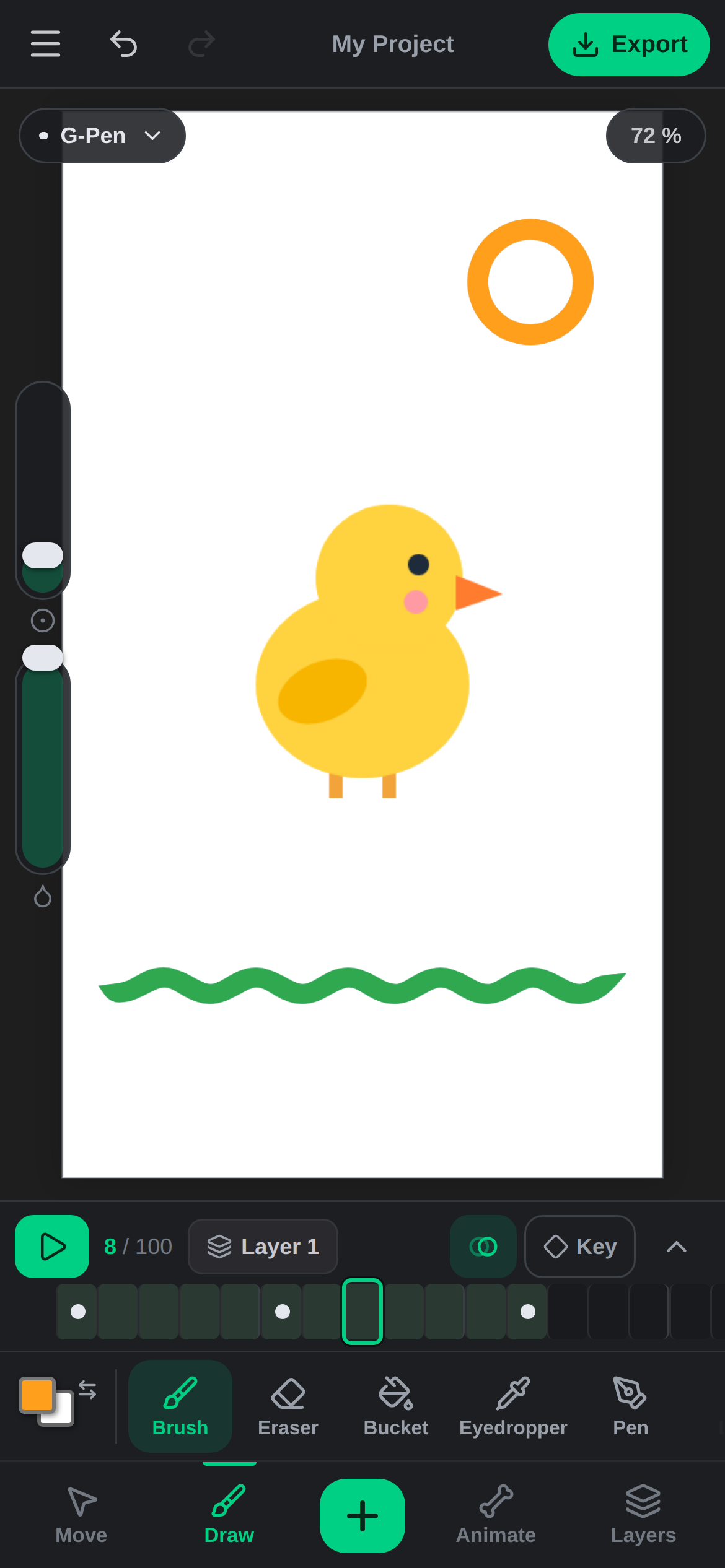 At the top the menu, undo and Export; in the middle the drawing; at the bottom the timeline and the tools.
Four groups and the + button
At the bottom there are four groups: Move, Draw, Animate and Layers. Tap one and its tools appear in the row above, each with its name so you don’t have to guess what an icon does. The stroke and fill colours sit at the left of the row.
The + in the middle is where you add voiced skits, Brinimate Mirror, the talking photo, your characters, images, text and shapes.
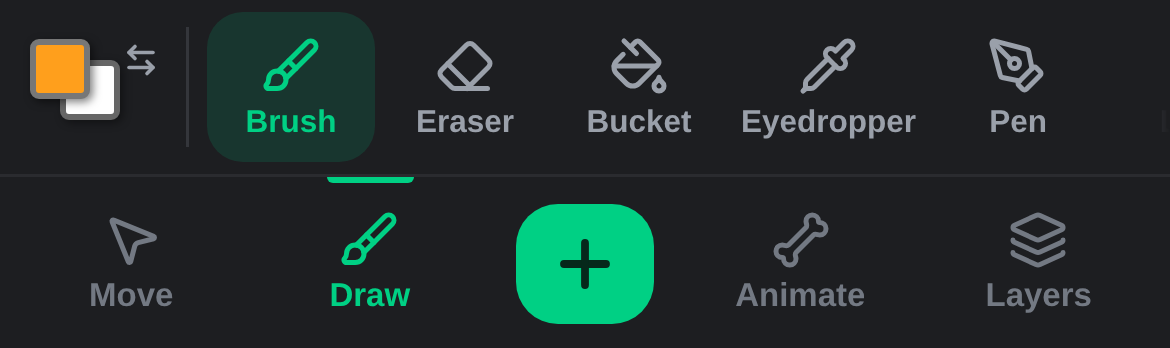 Tapping a group only shows its tools; it doesn’t change the one you’re using.
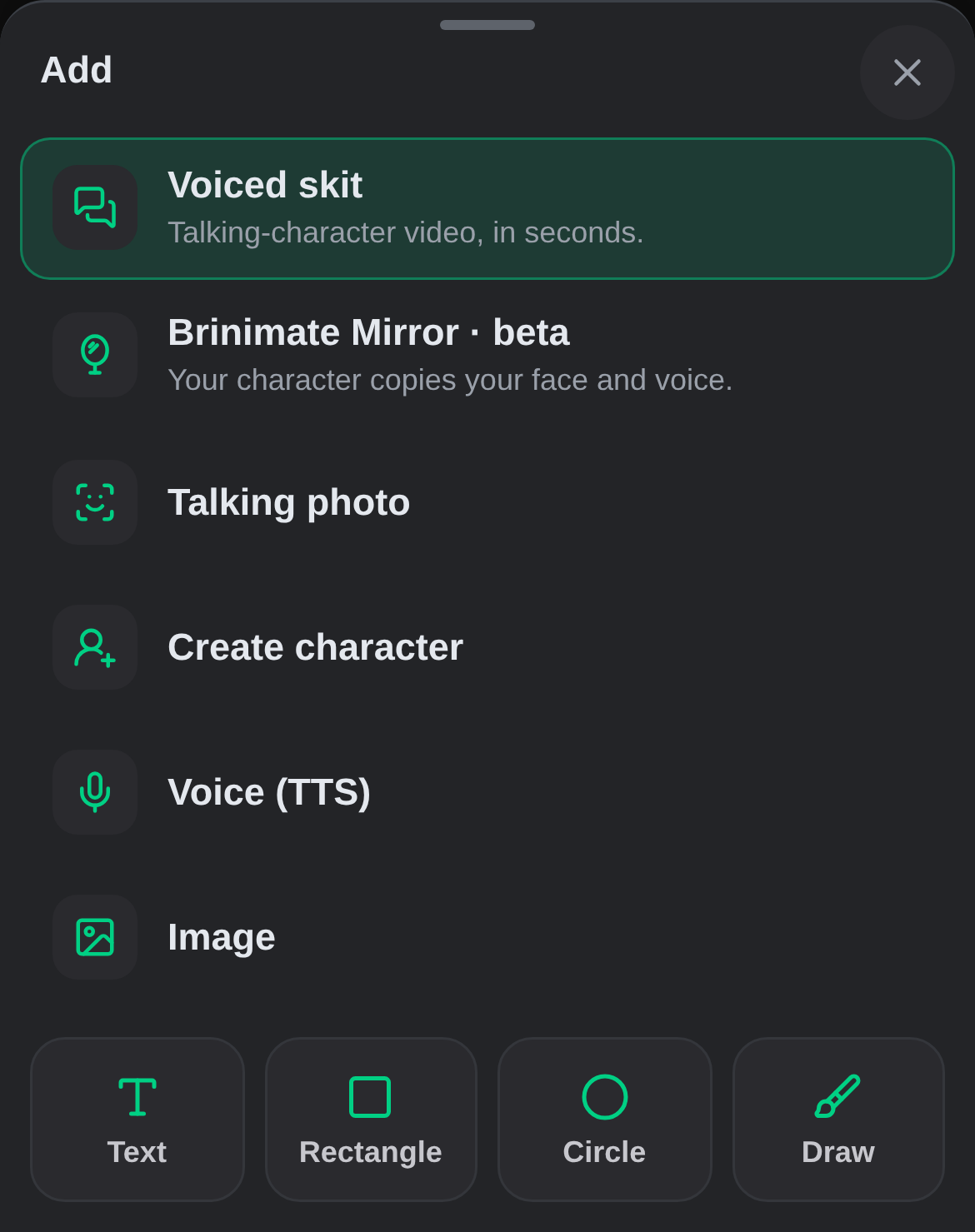 The + opens everything you can add.
The timeline, always in view
In an animation editor the timeline can’t be hidden. It now sits in a fixed strip above the tools:
- Swipe the strip to move through frames. The green box in the middle marks the current frame.
- Key keeps the drawing on this frame. If there’s already a keyframe, it removes it.
- The two-circle button turns on onion skin, which shows the previous frame.
- The arrow opens the full timeline with every layer.
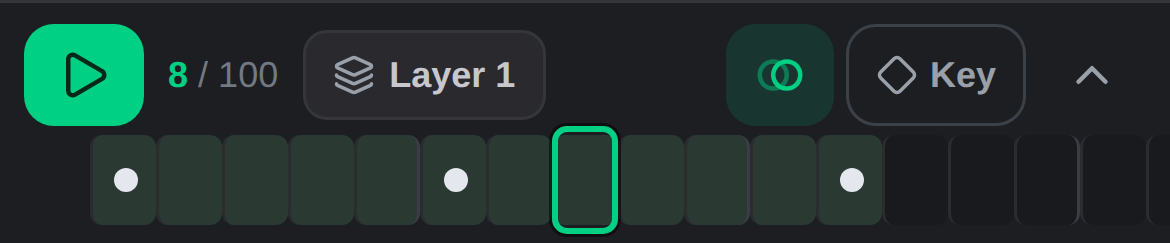 Dots are keyframes and dark green marks the frames that have a drawing.
The brush: size and opacity under your thumb
With the brush or the eraser, two bars appear on the left of the drawing: the top one sets the size and the bottom one the opacity. The brush name sits at the top left; tap it to pick another from the brush library.
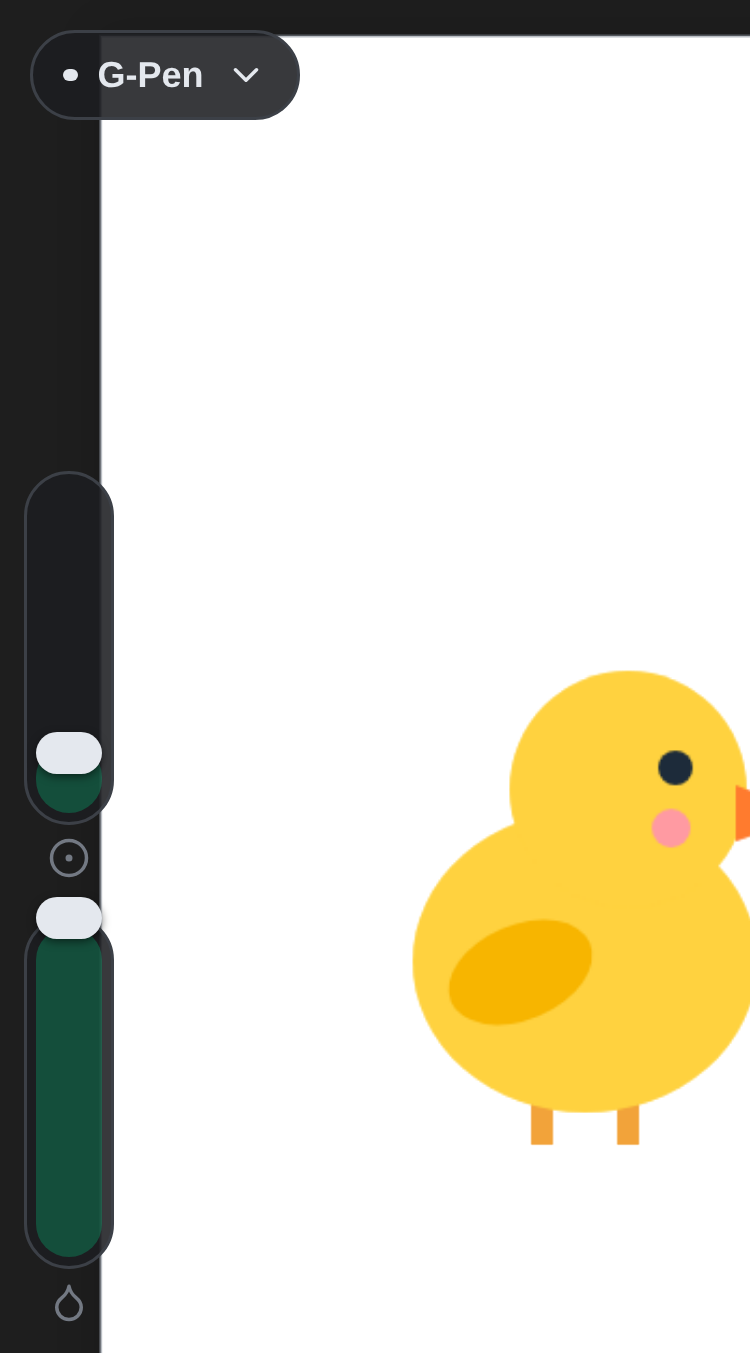 The size bar gives more travel to small sizes, the ones you use most.
When you select an object
Tap an object with Select (Move group) and the bottom bar turns into its actions: Settings, Duplicate, Flip and Delete. Above them are Copy, Paste, Flip V, To front, To back and Make symbol. Done takes you back to the tools.
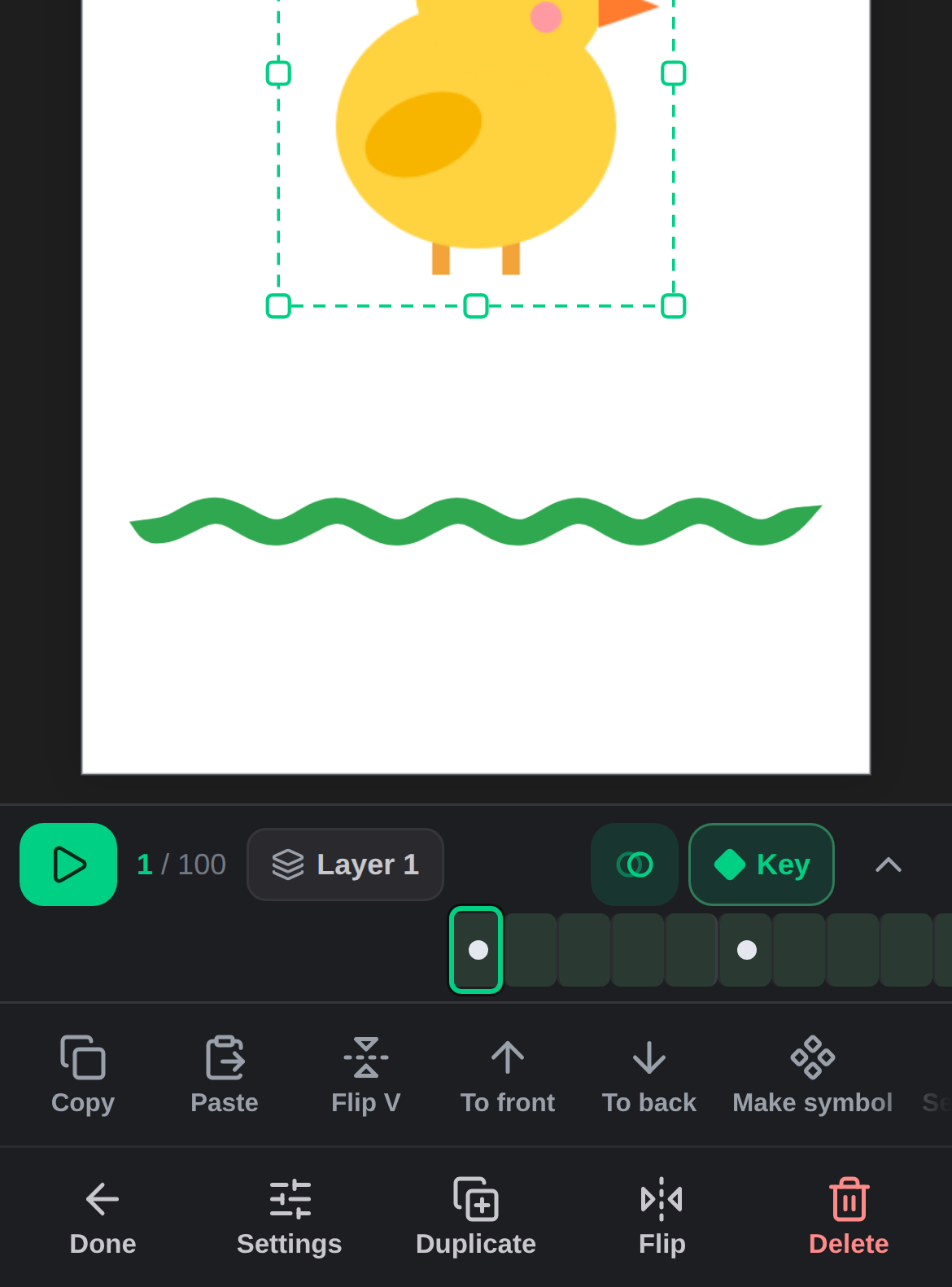 The actions show up only when something is selected.
Finger gestures
They work on the drawing with any tool:
- Pinch to zoom in or out.
- Drag with two fingers to move the drawing.
- Tap with two fingers to undo.
- Tap with three fingers to redo.
Pinching with the brush active leaves no stray marks: Brinimate waits a few milliseconds to see whether a second finger lands before starting the stroke. If you draw with a stylus, it draws instantly and a resting palm does nothing.
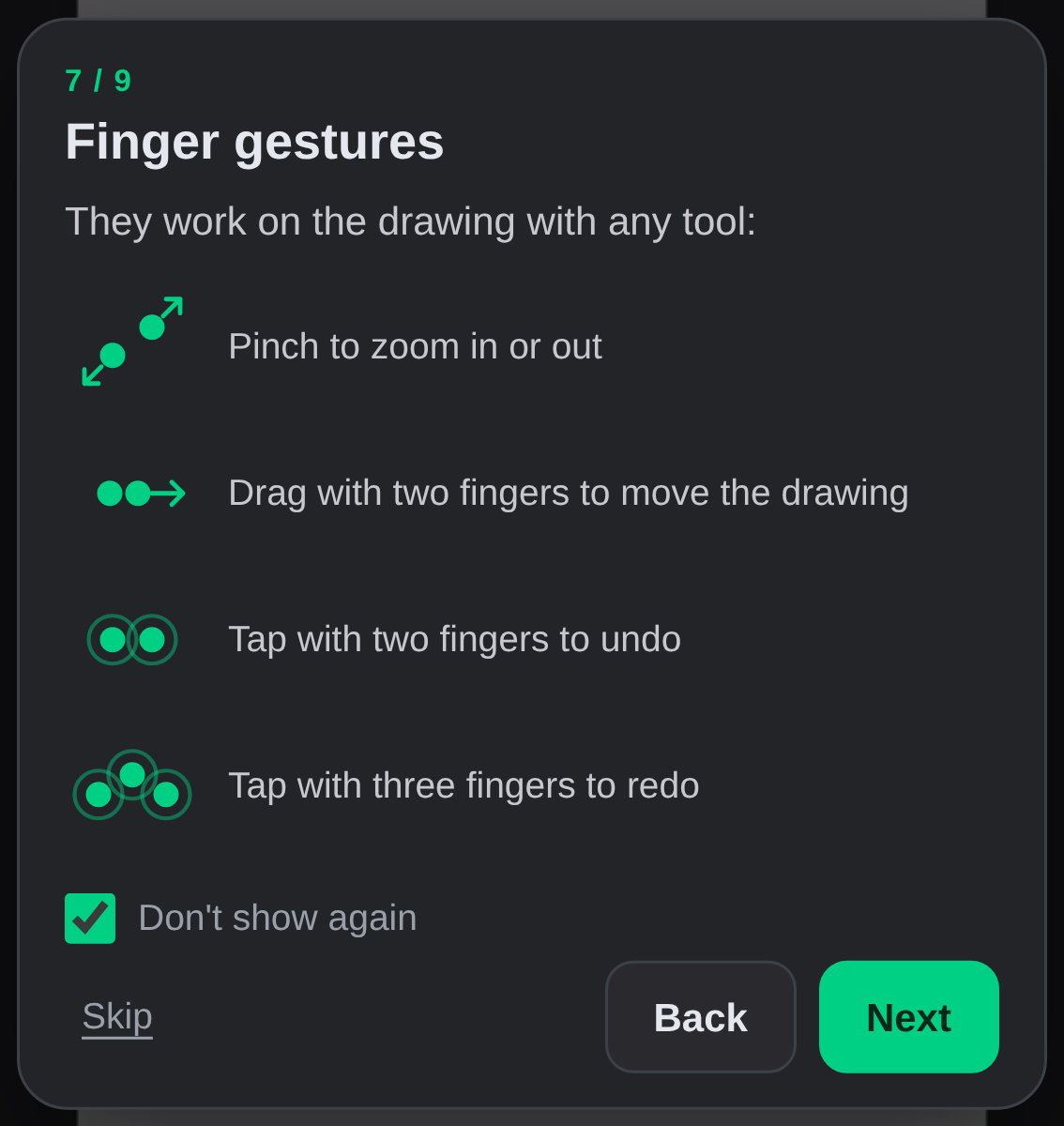 The guided tour shows up the first time and reopens from the menu.
Guided tour
The first time you open the editor on a phone, a nine-step tour shows you where everything is by highlighting it on screen. One tap skips it and it won’t come back, but you can review it any time from ☰ → Guided tour.
Landscape and tablets too
- Phone in landscape: the tools move to a column on the right and the drawing uses the full width.
- Tablet: in landscape it uses the desktop interface, with bigger finger-sized buttons and the same gestures.
- New projects on a phone start in vertical 9:16, ready for TikTok, Reels and Shorts.
FAQ
Do I need to install anything? No. Open the editor in your phone’s browser.
Where did the desktop options go? Into the ☰ menu: File, Edit, View, Insert, Modify, Animation and Export are all there.
Is it free? Yes, and no account needed.
If you animate on a computer, nothing changed: the desktop interface is the same. To get started on your phone, try a voiced skit from the + button.